
Assets
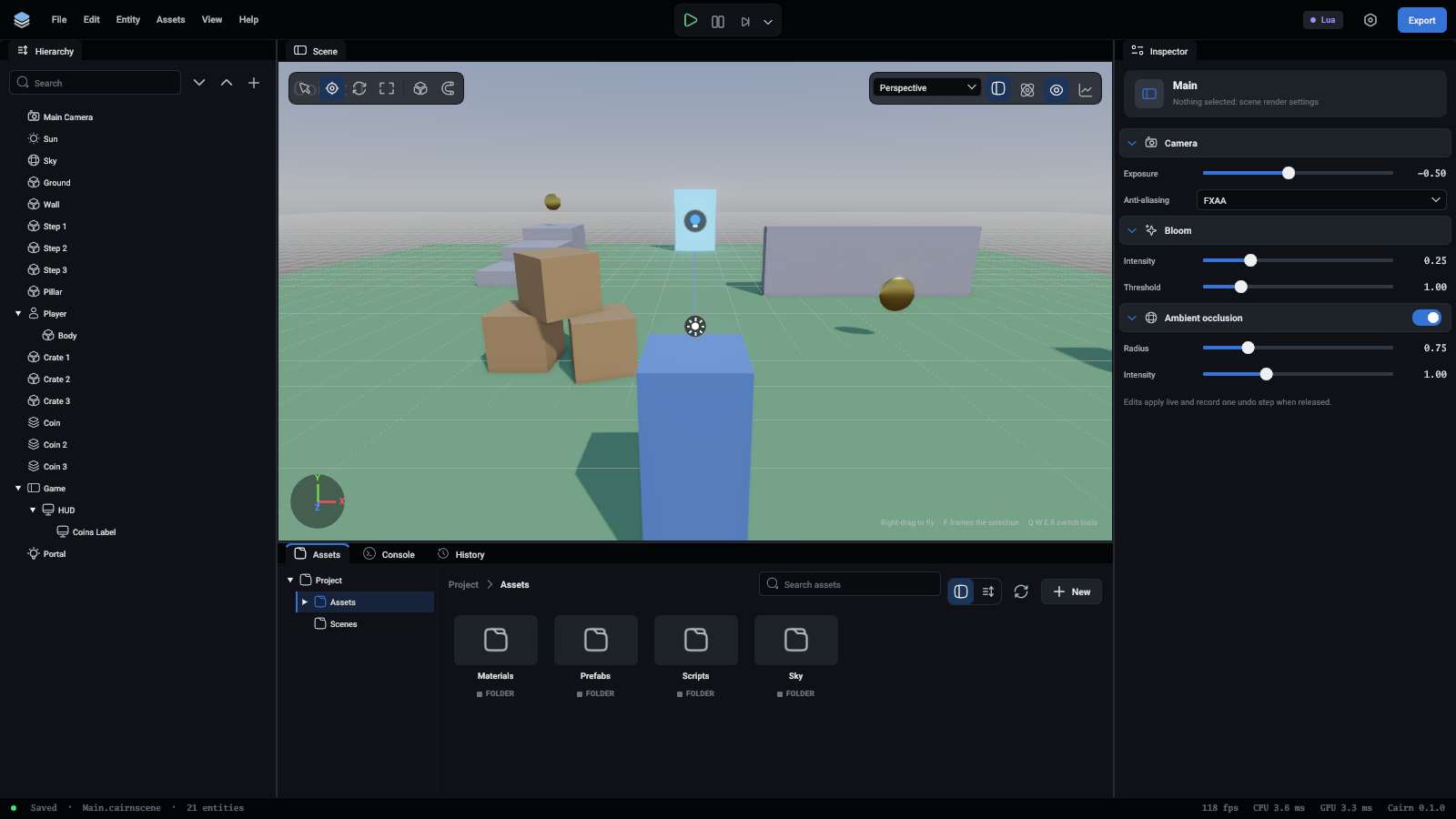
The Assets panel shows the project's folders and files.
Browsing
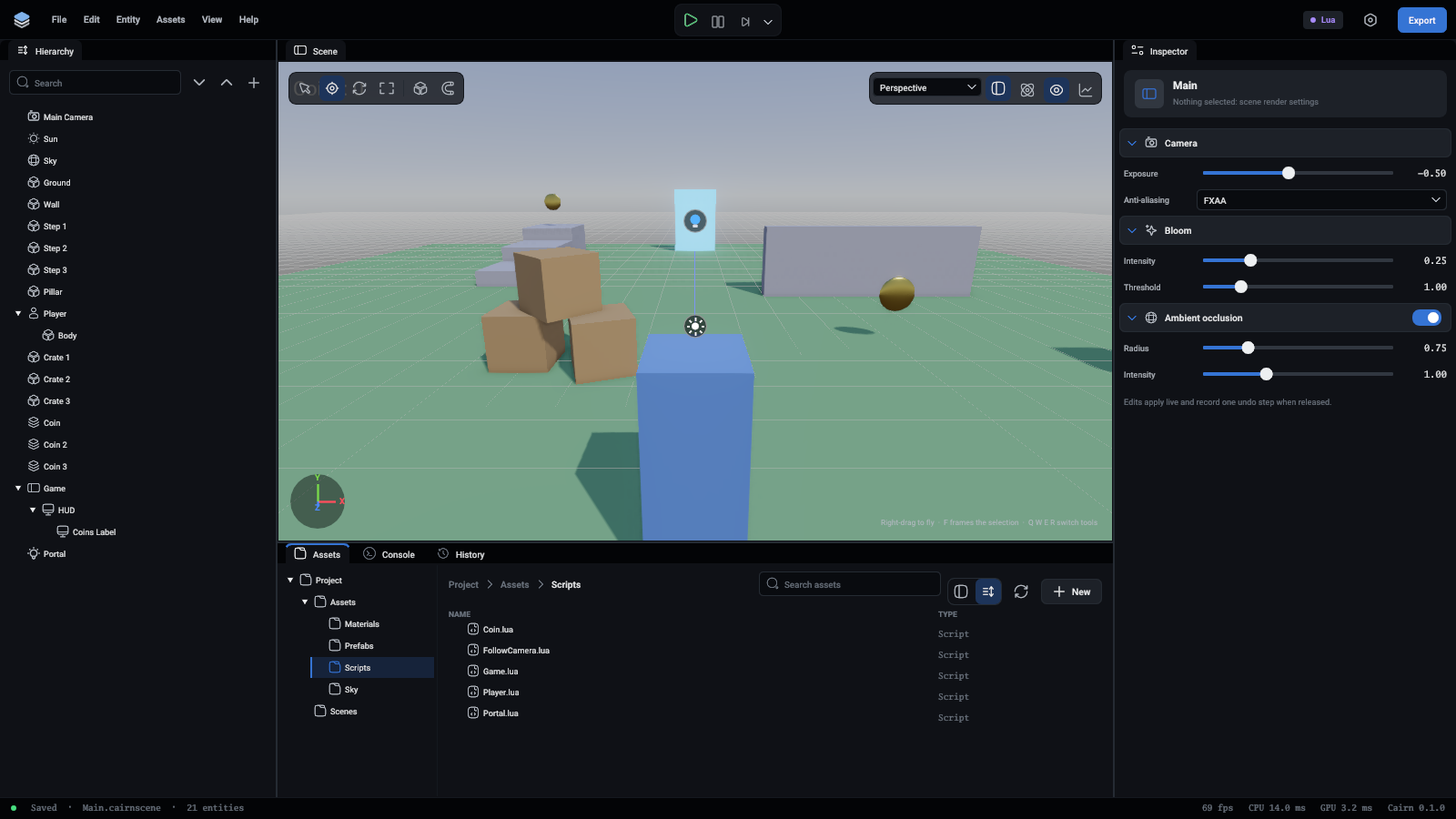
- The tree on the left is the project's folders. It opens down to the folder you are in. Each folder in the path above the files is a place to go back to.
- The two buttons beside the search box switch between pictures and a list. Over the pictures, Ctrl and the mouse wheel make them bigger or smaller. The list shows names and kinds, and a model opens to show its parts.
- The search box finds files by name across the whole project.
A texture's picture is the texture. A material is shown on a ball. A prefab, a model or a mesh is drawn lit. Scripts, sounds, scenes and fonts have an icon in the colour of their kind. Under each name is the kind of asset.
Using an asset
A script opens in whatever your system has set for .lua files. Set that in your system's file manager to choose your code editor.
Making assets
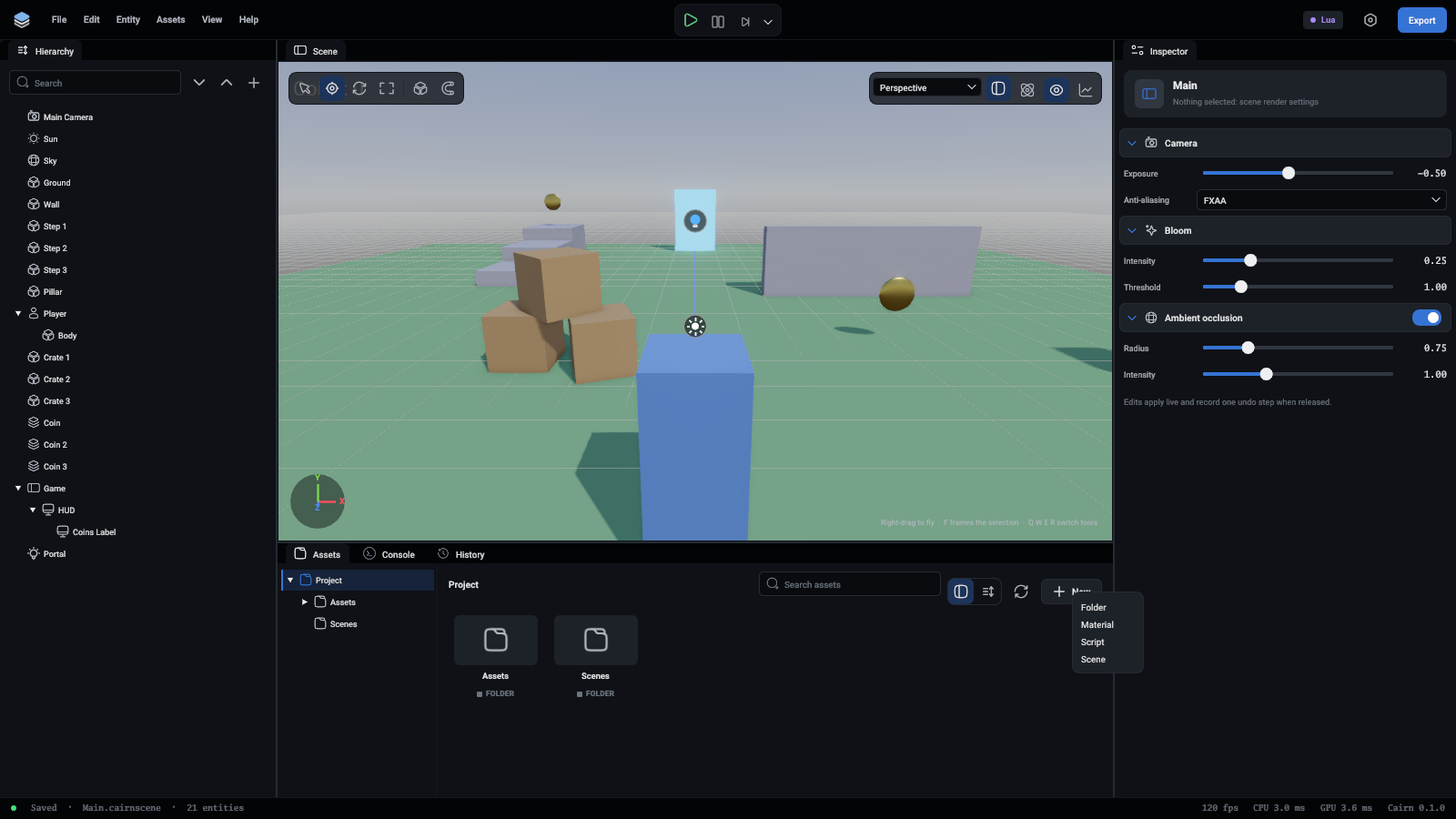
The New button makes a folder, a material, a script or a scene in the folder you are in. A right-click on the empty part of the folder gives the same list. A new script comes with the usual functions in it.
To bring in a file from elsewhere, drag it from your file manager onto the editor's window. It is copied into the folder the Assets panel is showing. You can also copy files into the project's folder yourself and press the refresh button, the two arrows beside New.
Renaming, moving and deleting
Right-click an asset for Rename and Delete, and drag an asset onto a folder, in the tree or in the grid, to move it.
Renaming and moving keep the asset's ID, so everything that uses it still finds it. Deleting removes the file from disk and cannot be undone: what used it then has nothing there.
The scene that is open cannot be renamed, moved or deleted. Open another scene first.
Kinds of asset
A model contains parts: meshes, materials, textures, and for an animated model a skeleton and animations. Each part is an asset of its own that a component can refer to.
Meta files
Every asset has a .meta file beside it that holds its ID. Components and scenes refer to assets by ID, never by path, so renaming a file breaks nothing as long as its .meta file moves with it.
Commit .meta files. Move and rename an asset together with its .meta file.