
Performance
Press F3 to see what a frame costs and where its time goes. In the editor it opens the Performance window. In a game started from the runtime with a project file it shows a box over the game. Both use the same numbers.
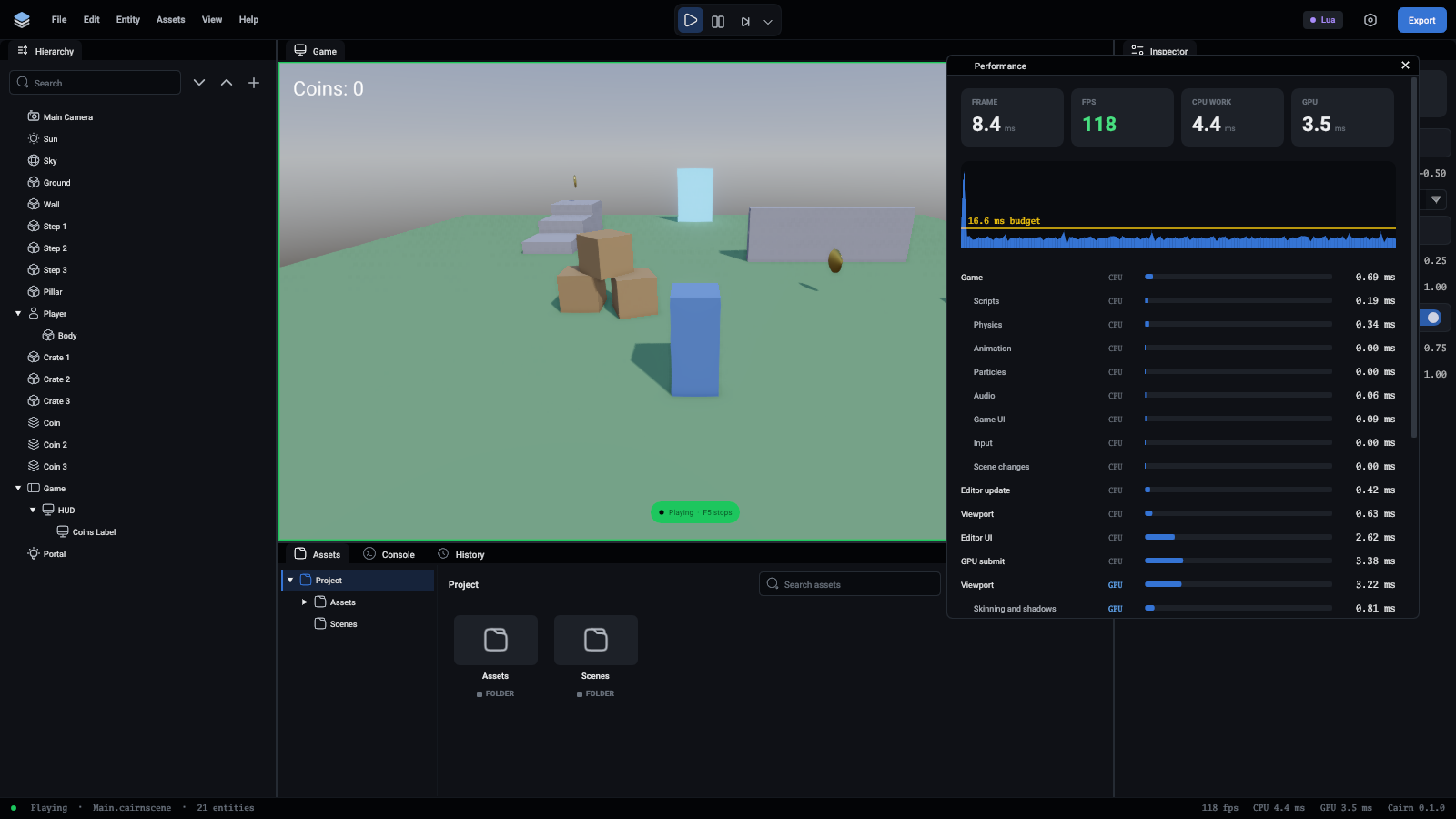
Opening it
The game sees F3 too. If your game uses F3 for something, run it without the overlay.
What it shows
The numbers change twice a second, each an average over the last half second, so they are steady enough to read.
Where the time goes
The CPU rows list the main thread's time by part:
The GPU rows, marked GPU, list how long the GPU took over each pass of the picture, measured by the GPU itself:
GPU times are a few frames old when shown, because the GPU finishes a frame after the CPU has moved on.
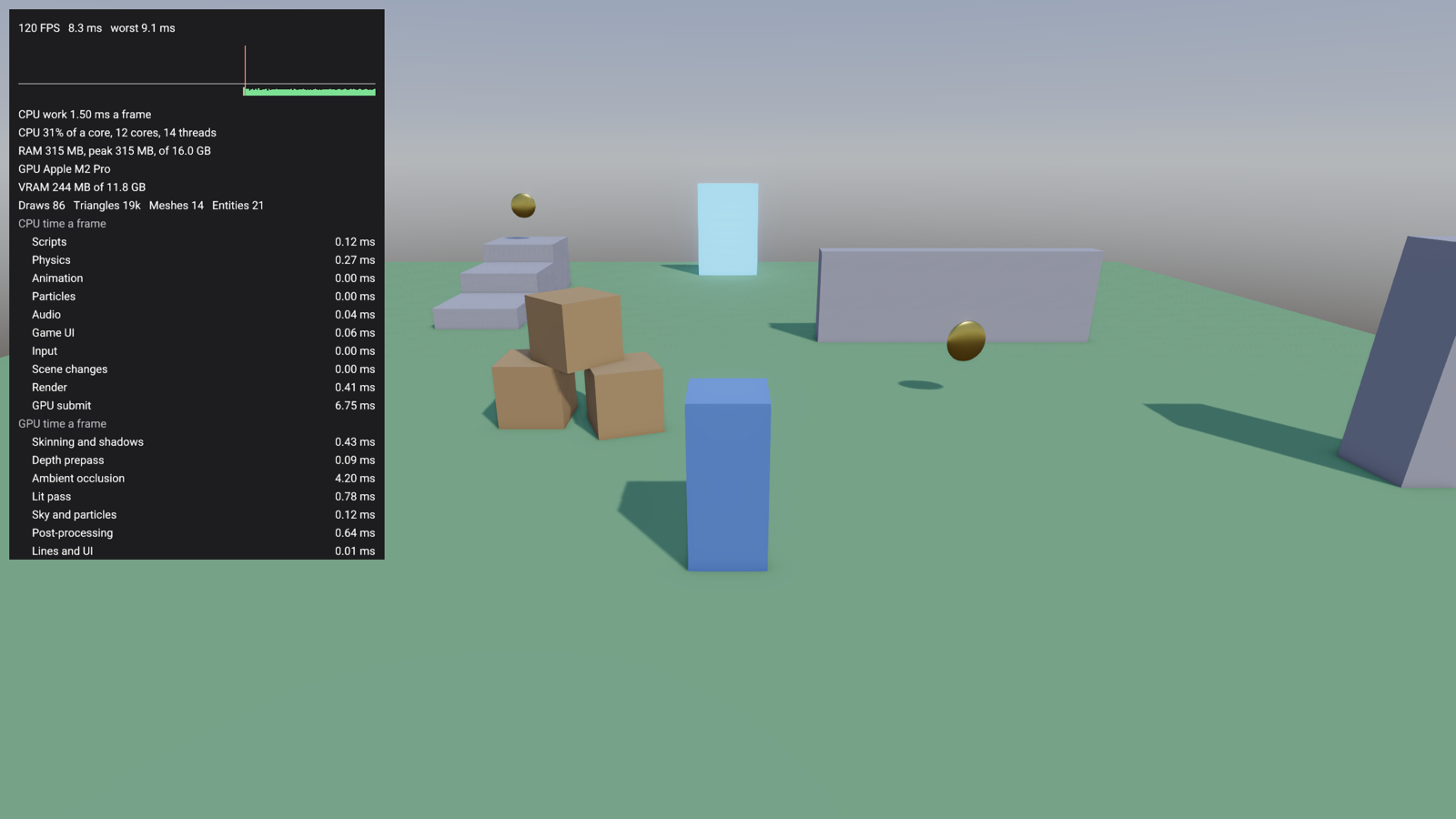
Finding what is slow
- Look at GPU submit first. When it is large, the GPU is the limit: look down the GPU list for the most expensive pass. When it is small and CPU work is near the frame time, the CPU is the limit: look down the CPU list.
- A slow GPU pass usually has a setting behind it. Ambient occlusion and post-processing cost more the more pixels there are. Ambient occlusion, bloom and anti-aliasing are in the scene's render settings (the inspector with nothing selected), so turn one off and compare. Shadows cost more with each shadow-casting light, and a point light draws six shadow views.
- A slow Scripts line is usually one script doing too much in
OnUpdate. Switch entities off one at a time, or move work into a timer that runs less often. - A slow Physics line comes with many bodies, or with mesh colliders on things that move. Simple shapes are much cheaper.
- Watch the graph while you play. Single tall bars are hitches, often from loading something the first time it is used.
Recording a run
To compare one version of a game with another, record the numbers instead of reading them:
Each time the stats change, twice a second, the runtime writes every number as a row of its own:
time is seconds since the run started, scene is the scene that was running, and group is frame, machine, counter, cpu or gpu. A row for each number keeps the file the same shape when sections come and go, as the game's do between levels. A pivot table in a spreadsheet, with name across and scene down, gives the average of each number in each scene. Like the overlay, it works only for a game run with a project file.
A run that is the same every time
Samples/FeatureTour in the repository is made for this. Left on its title screen for six seconds, it starts its benchmark: an autopilot walks the player through six levels, each of which leans on one part of the engine (lights, physics, particles, animation, scripts), in about a minute and a half. Record a run before a change and one after, and compare the levels:
Judge speed in a release build (make release). A debug build has no optimisation and asserts on, and its numbers say little about the finished game. --validation slows things down too.
For a frame broken down function by function, build with the Tracy profiler, as the Profiling section of AGENTS.md in the repository describes. The Performance window is for seeing at a glance where to look.