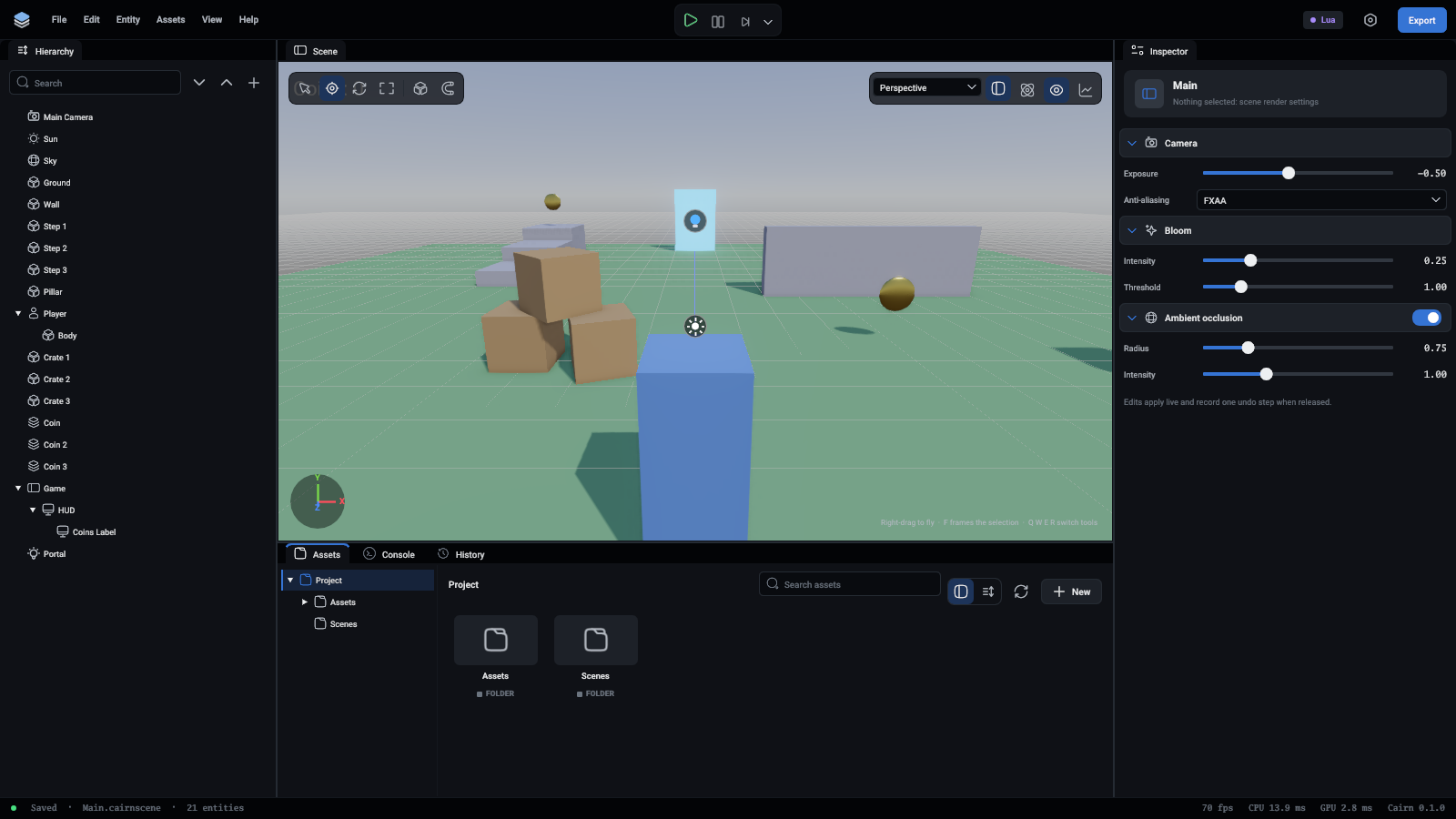
Inspector
The inspector shows whatever you selected last and lets you change it: an entity, a material from the Assets panel, or, with nothing selected, the scene's render settings.
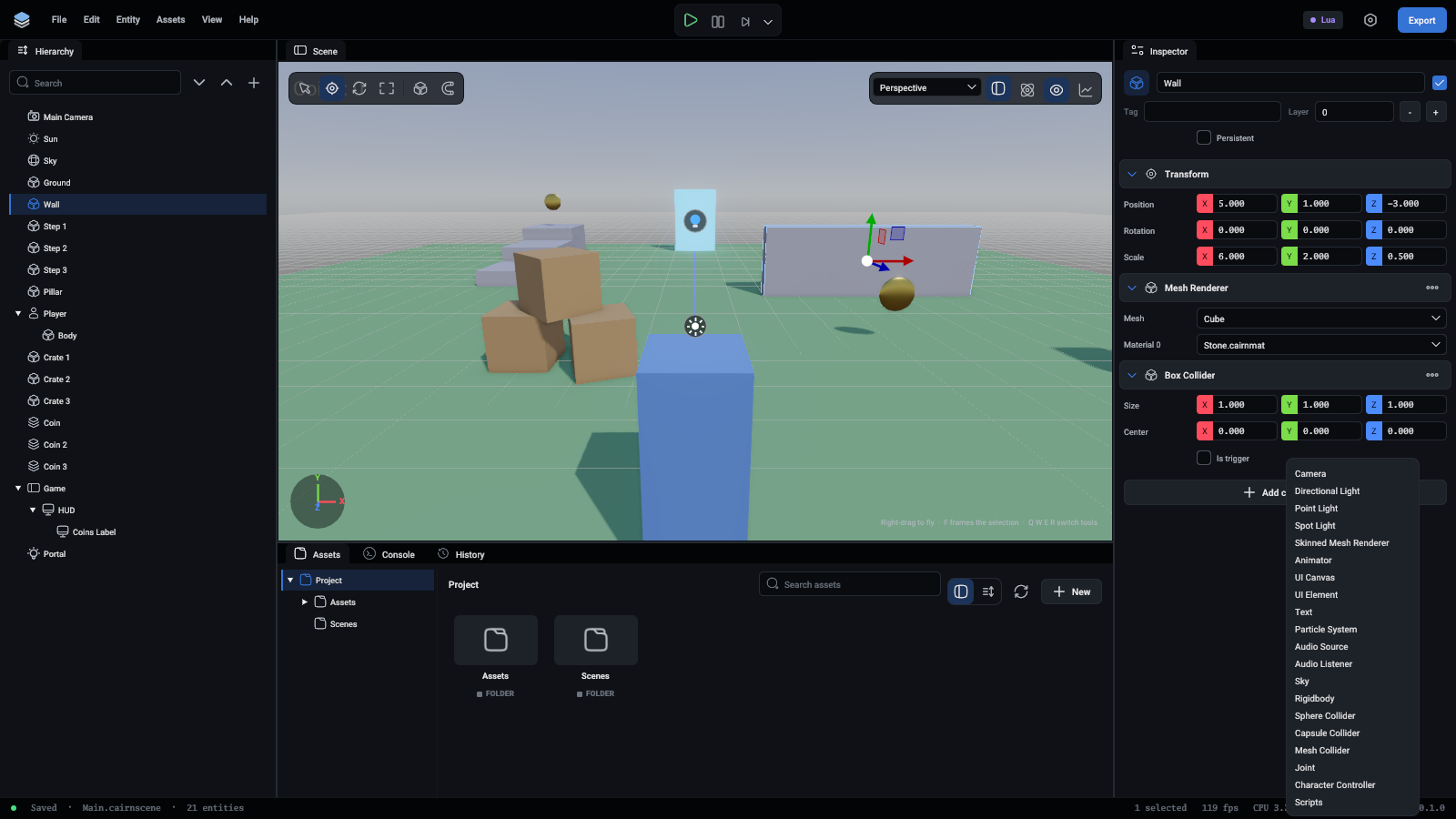
An entity
The top row is the entity's icon, its name and a box that switches it on and off. Under it are its Tag, a word scripts can find it by, such as Player or Coin, and its Layer, which decides what it collides with. Layers are named in Project settings.
Persistent keeps the entity, with everything under it and its scripts still running, when a script switches to another scene. Use it for the player, a score keeper or music that plays on. It only matters for an entity at the top of the hierarchy.
Below that is a section for each component, starting with Transform, which every entity has. Components describes every one of them, field by field.
Sections
- The arrow at the left of a section's header folds it away.
- The ... at the right of a header removes the component. Transform cannot be removed.
- A component that can be paused, such as ambient occlusion in the render settings, has a switch in its header.
Values
- Drag a number field left or right to change it, or double-click it to type a value.
- The three fields of a position, a rotation or a size are tagged X, Y and Z, in the same colours as the viewport's handles.
- A slider has its value written to its right. Ctrl-click it to type a value.
- A colour is a swatch and a hex code. Click it for a colour picker. The code is of the colour as the engine keeps it, in linear light.
- A field that takes an asset is a list of the assets of that kind in the project. You can also drag one onto it from the Assets panel.
- A field that takes an entity is a list of the scene's entities, and takes an entity dragged from the hierarchy.
A change shows in the viewport as you drag. When you let go, the whole drag becomes one undo step.
Adding a component
Add component at the bottom lists every component the entity does not have yet. Pick one and it is added with its usual values.
Scripts
Each script on an entity is a section of its own, named after its file. It lists the fields the script exposes, with the value it has on this entity. A field changed from the script's own default has Reset beside it. Open script opens the file in your code editor, which you choose in Preferences.
Under the scripts, Add script adds an empty slot to pick a script into, and New script writes a new script named after the entity, in Assets/Scripts, and puts it on.
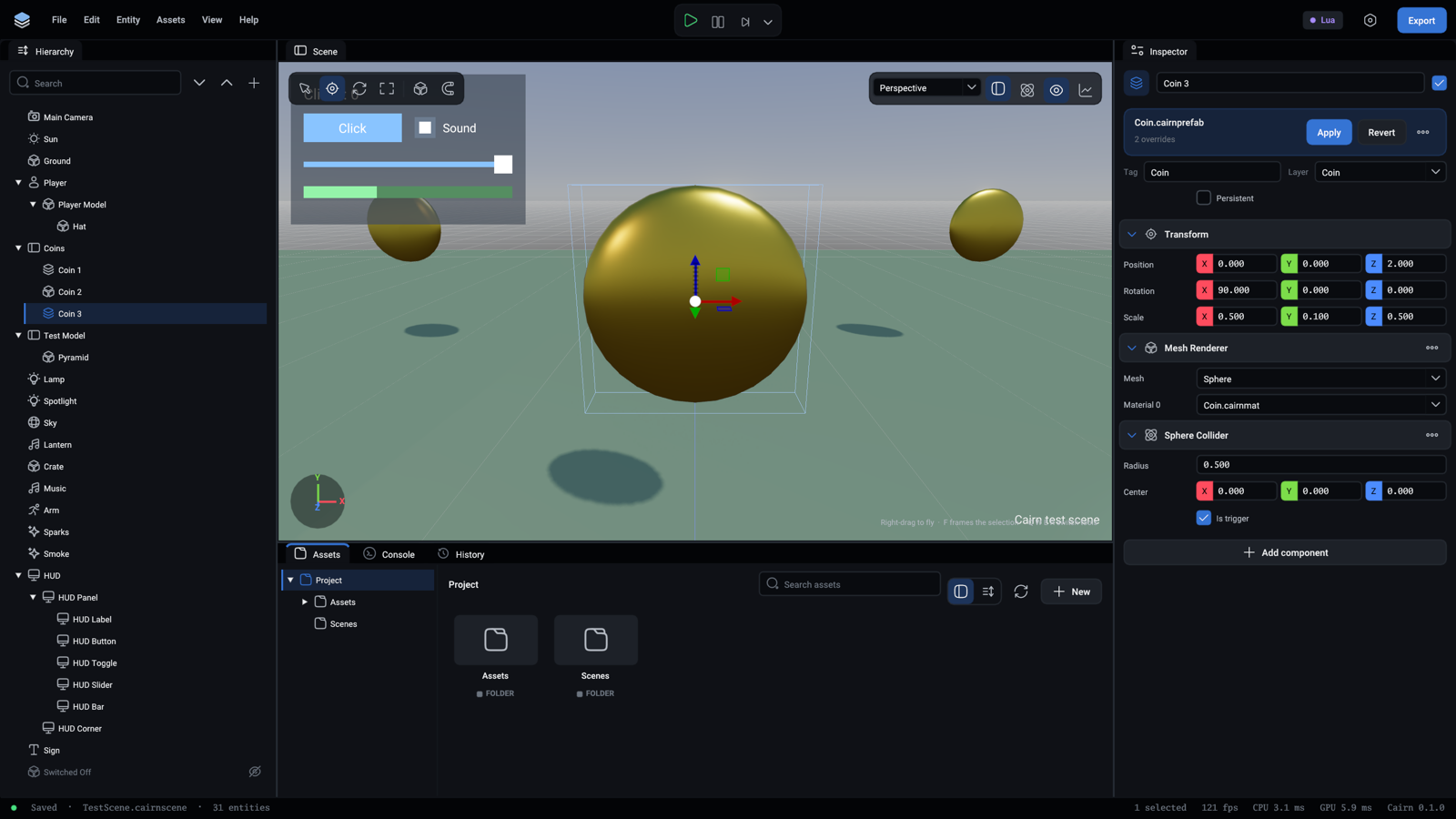
A prefab instance
An entity that is part of a prefab instance has a card under its name: the prefab's file, how many things this instance changed, Apply to write those changes to the prefab, and Revert to drop them. Its ... menu has Unpack. See Prefabs.
A material
Click a material in the Assets panel and the inspector shows it: a picture of it on a ball, then its Surface, Emission and Rendering values. Each change is written to the material's file when you let go, and everything that uses the material shows it. The line at the bottom says how many entities use the material, and in how many scenes and prefabs.
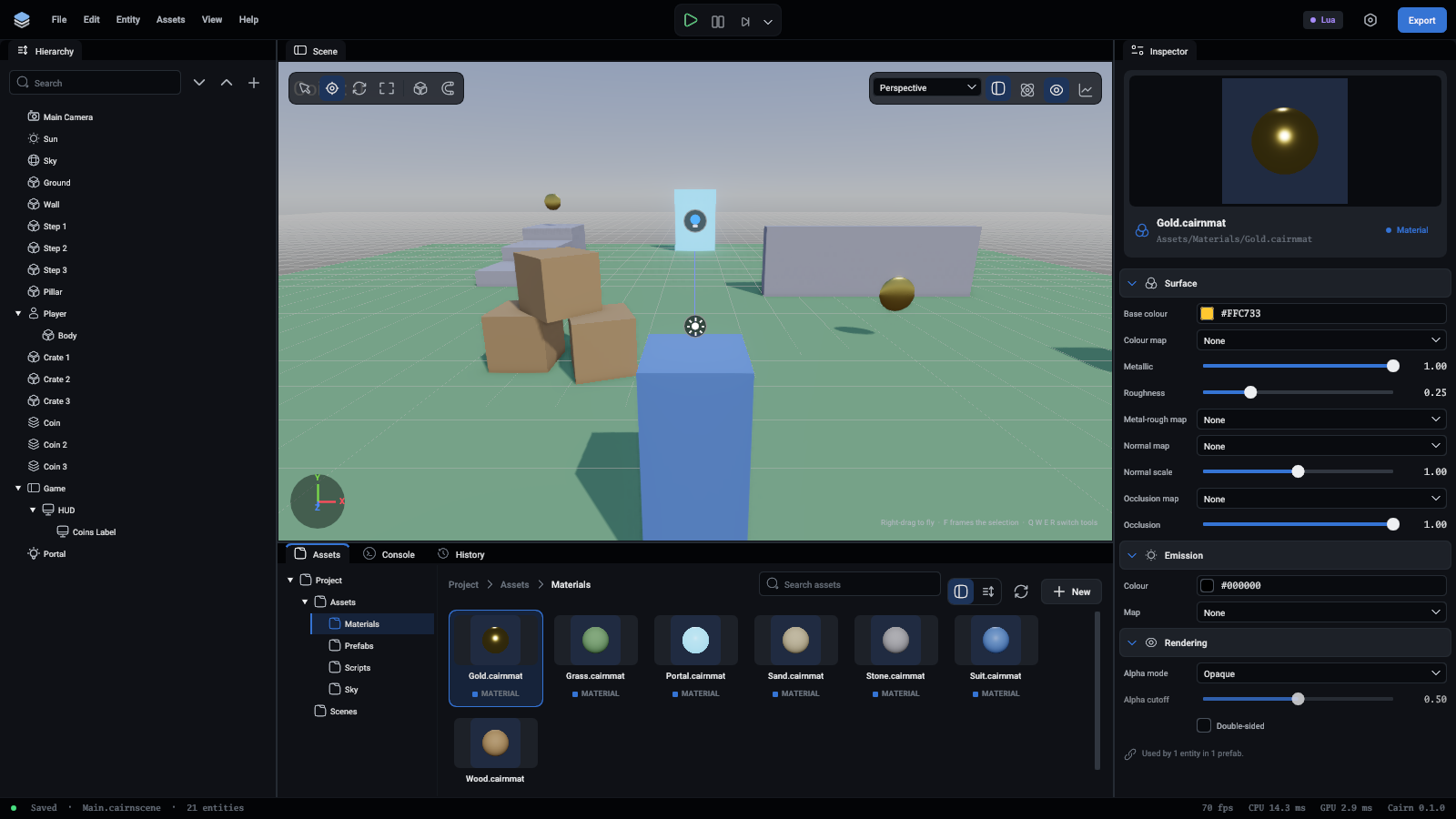
A material that is part of a model belongs to the model and is shown, not changed. Make a material of your own with New > Material in the Assets panel and use that.
The scene's render settings
With nothing selected, the inspector shows how the scene's picture is made: Exposure and Anti-aliasing, Bloom, and Ambient occlusion, which has a switch in its header. They change as you drag, and each change is one undo step when you let go. Rendering explains each one.