
5. Coins and a score
In this part you make a coin, turn it into a prefab so you can place many, and show a count on screen.
A coin
- Press + and Create Sphere. Name it
Coinand set its Position to4, 1, 1. - Set its Scale to
0.7, 0.7, 0.14, which flattens the ball into a disc. - In the Tag box, type
Coin. - Make a material called
Gold: a yellow Base color, Metallic at1and Roughness at about0.25. - Add a Sphere Collider. Set Radius to
0.7and tick Is trigger.
A trigger is a collider that blocks nothing. Things pass through it, and it reports what entered. Coins, checkpoints, doors that open when you come near and zones that hurt are all triggers.
The coin script
Add Scripts to the coin, press New script and replace the contents of Coin.lua:
Turnrotates the entity by some degrees from how it is. Multiplying bydeltaTime, the seconds since the last frame, makes the speed the same whatever the frame rate.OnTriggerEnteris called when a body enters the trigger. The script checks the tag, so a crate rolling through a coin does not collect it.Destroyremoves the entity at the end of the frame.
Events.Emit("CoinCollected") announces that something happened, to whoever is listening. Nobody is yet. The coin does not know or care who keeps the score, which means you can change how the score works later without touching the coin.
Press Play and walk into the coin. It disappears.
Make it a prefab
You want several coins, and you want to be able to change all of them at once. That is what a prefab is for.
- Right-click Coin in the Hierarchy and choose Make Prefab.
The editor saves the coin as Assets/Prefabs/Coin.cairnprefab, and the coin in the scene becomes an instance of it. The inspector shows that at the top.
- In the Assets panel, open
Assets/Prefabs. Drag Coin into the viewport twice. Each lands where you drop it. - Set the two new coins' positions to
6, 1, -5and-6, 2.5, -9. The last one is on top of the steps.
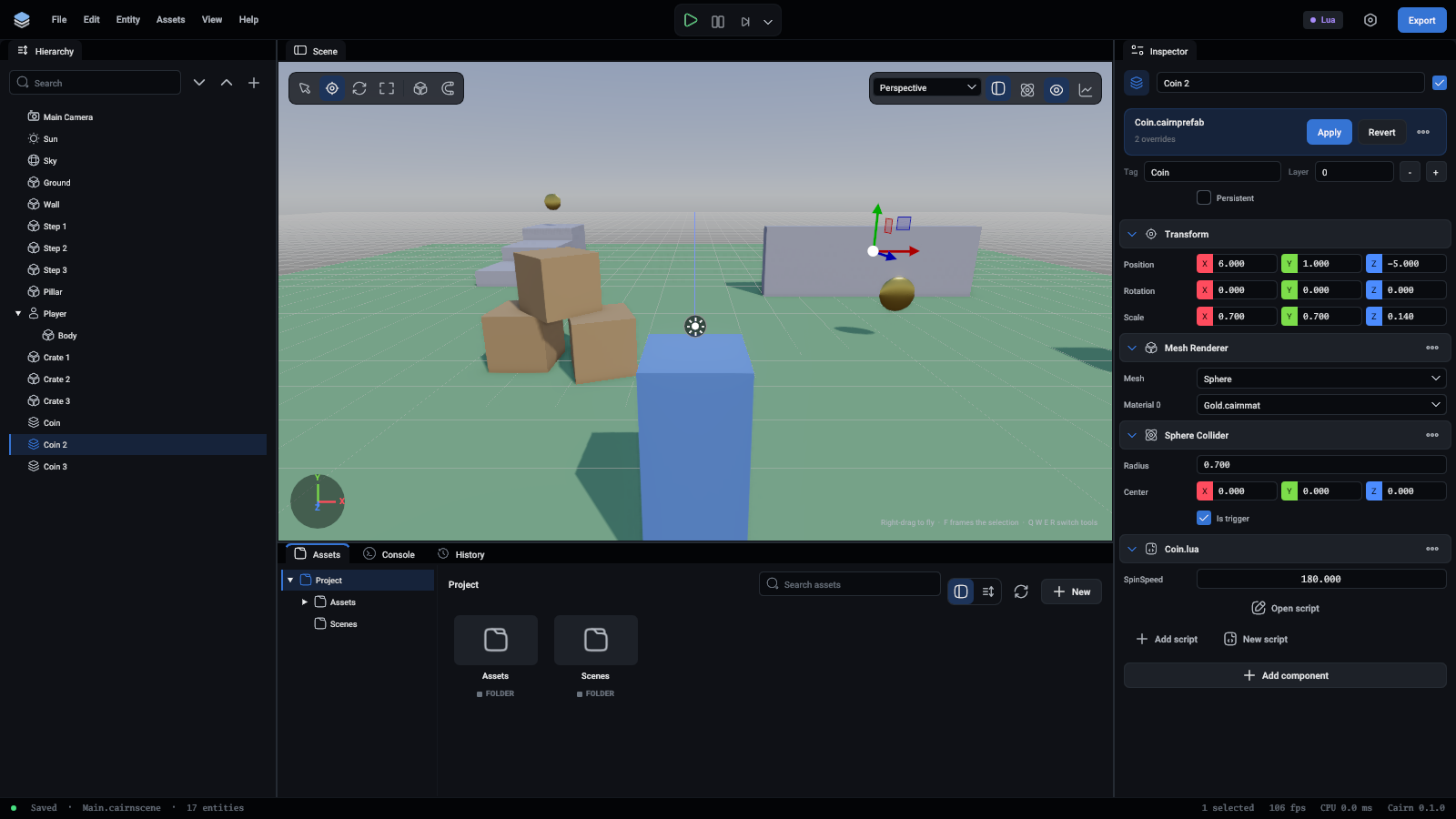
An instance stores only what it changed, here its name and position. Everything else comes from the prefab. Select any coin, change SpinSpeed and press Apply at the top of the inspector: the change is written to the prefab and every coin spins at the new speed.
Keep the score
The score needs somewhere to live. Make an entity for it:
- +, Create Empty, name it
Game. - Add Scripts, press New script, and replace the contents of
Game.lua:
Events.On is the other half of Events.Emit: it runs a function whenever the named event is announced. The third argument is the listener's owner. When that entity is destroyed, the listening stops by itself.
The script has a Label field, and nothing to put in it yet.
Show it on screen
Screen UI is made of entities too.
- Right-click Game, choose Create Empty and name the child
HUD. Add a UI Canvas component to it and set its reference size to1280, 720. - Right-click HUD, choose Create Empty and name it
Coins Label. Add a UI Element component. - Set the element's Type to Text, Text to
Coins: 0and Font size to40. - Set Position to
24, 16and Size to400, 50.
A canvas covers the whole view. Elements under it are placed in its reference units, which are scaled to fit whatever size the window is. With Anchor and Pivot at 0, 0, the position is measured from the top left corner.
- Select Game and drag Coins Label onto the script's Label box.
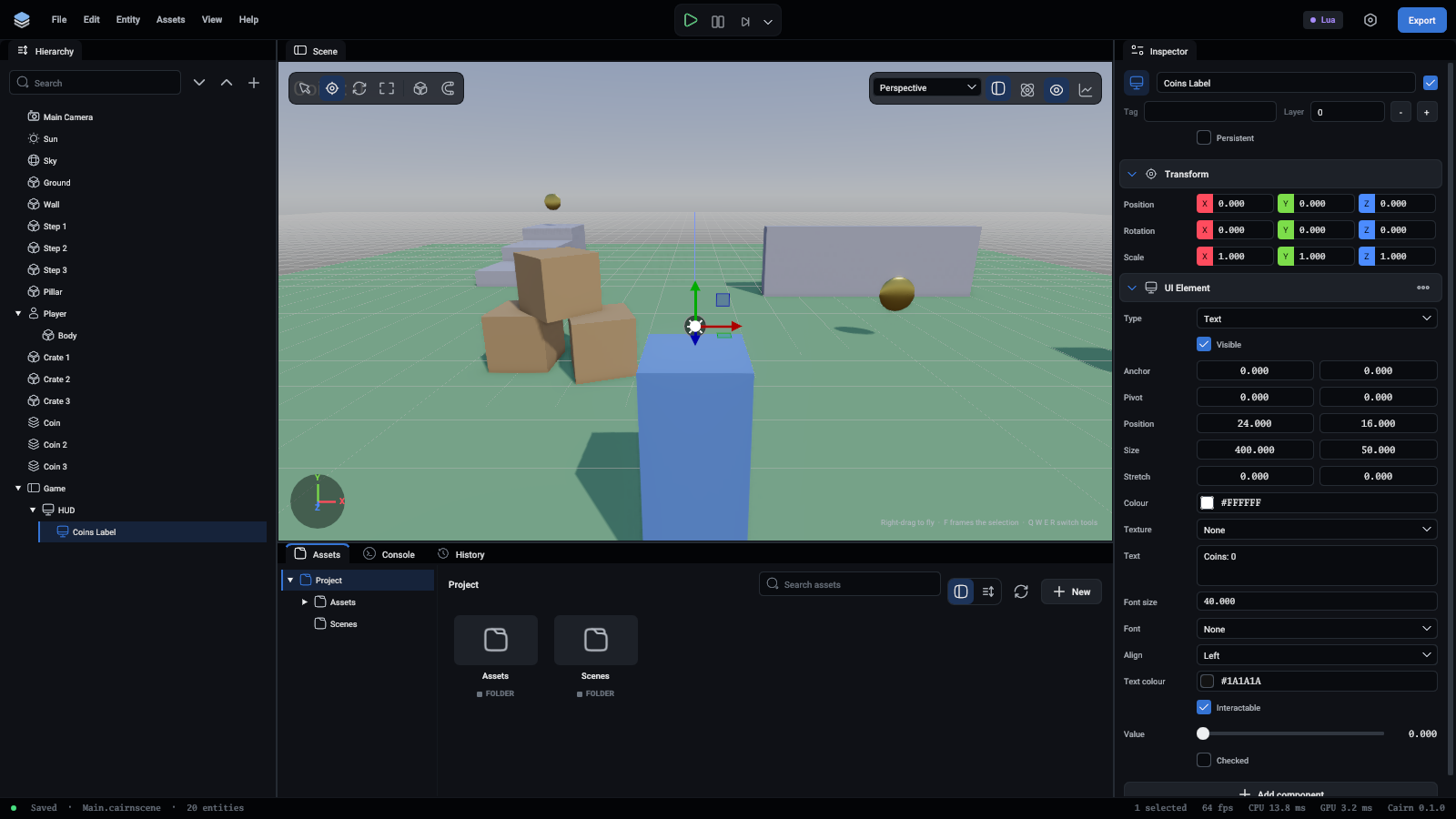
Press Play and collect the coins. The count goes up.
The script changes the text with self.Label.UIElement.Text. A component is a field of its entity under its own name, the same way the player script used self.Entity.CharacterController.
What you learned
- A trigger reports what enters it and blocks nothing.
- A prefab is an entity saved as a file. Instances follow it, apart from what they changed.
- Events let scripts tell each other things without knowing about each other.
- UI is a canvas entity with element entities under it.
More in Prefabs and UI and text.
Next: a second level.