
1. A project and a level
In this part you make a project and build a small level out of boxes.
Make the project
- Start the editor with no arguments:
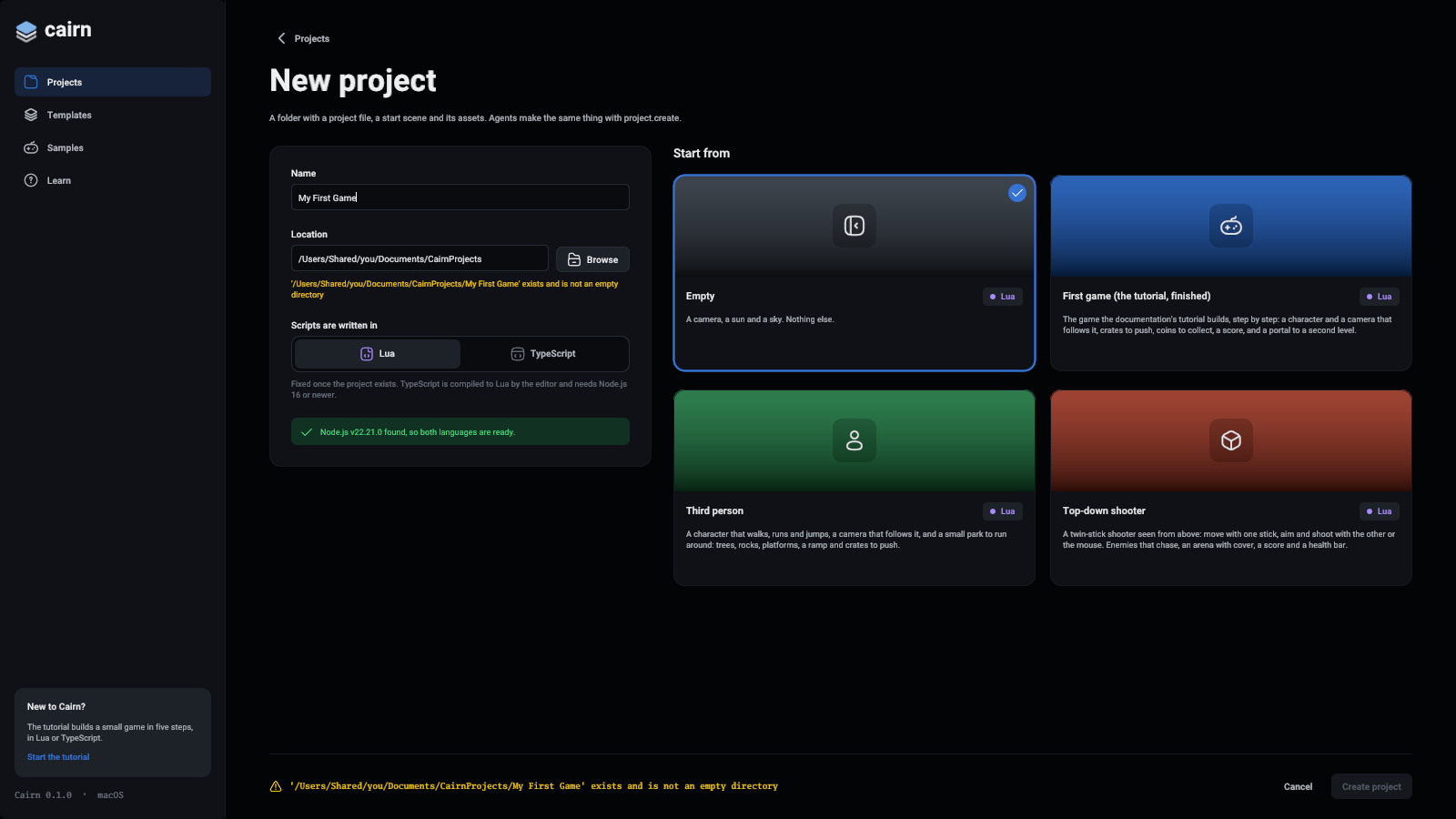
./build/Cairn-Editor/Cairn-Editor. - In the project hub, press New project.
- Under Start from, leave Empty selected.
- Type the name
My First Gameand press Create project.
The editor opens the project's start scene. It has three entities, listed in the Hierarchy on the left: a Main Camera, a Sun and a Sky.
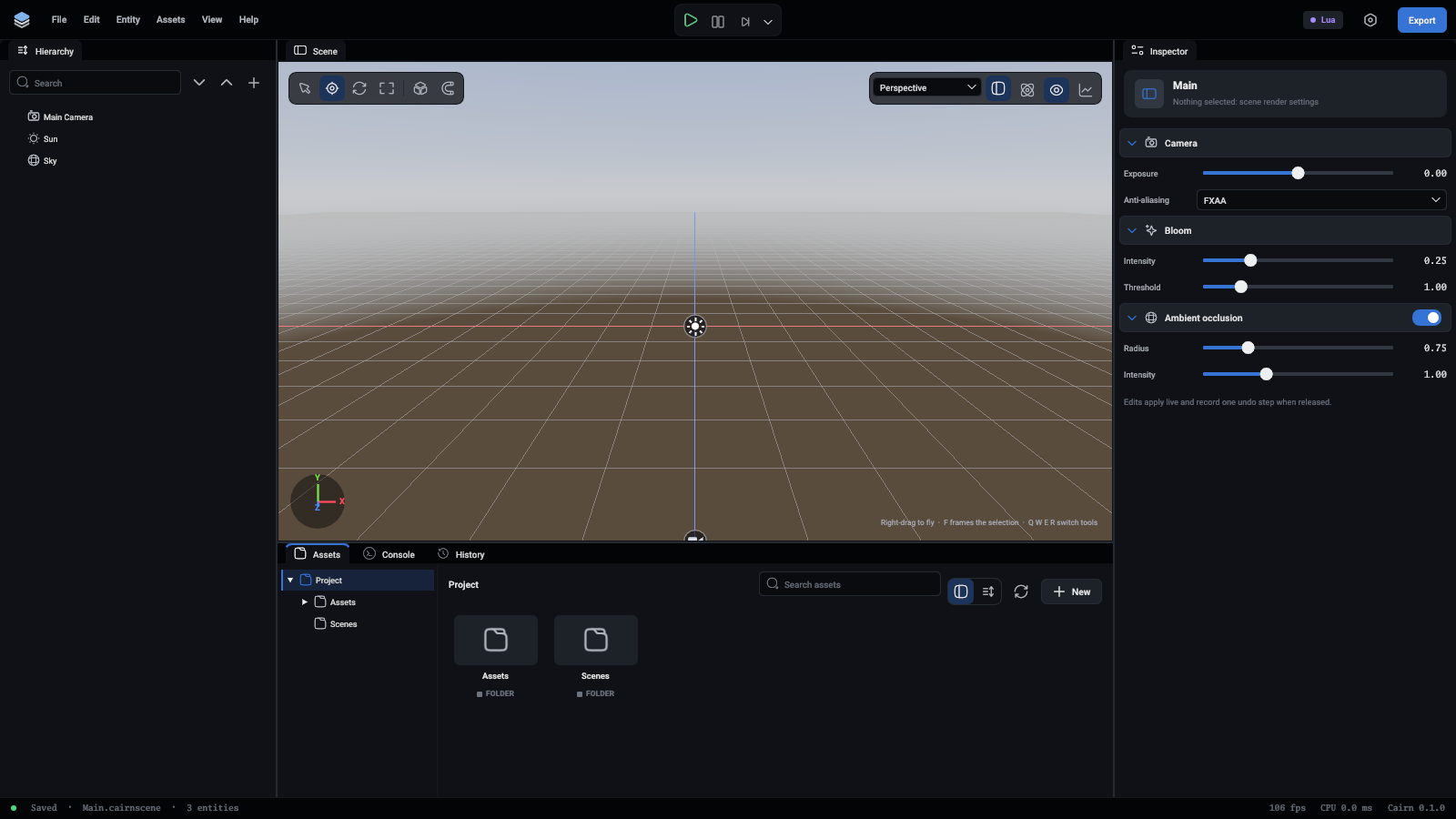
An entity is one thing in the scene. On its own it is only a name and a place. What it does comes from its components: the Sun entity has a Directional Light component, the camera entity has a Camera component. You will use this idea in every part of the tutorial.
Add the ground
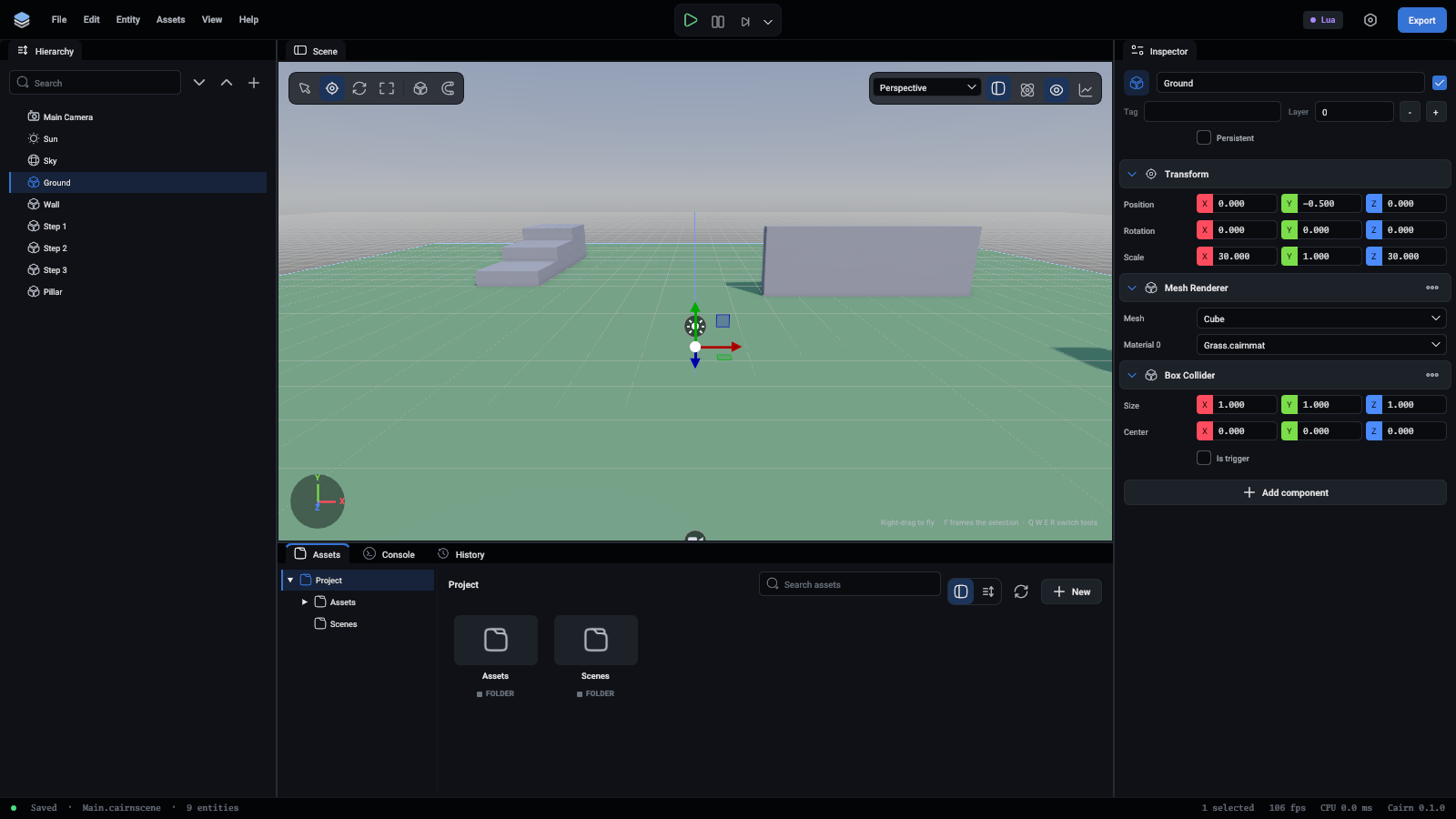
- In the Hierarchy, press + and choose Create Cube. A cube appears at the centre of the scene and is selected.
- Press F2, type
Groundand press Enter. - The Inspector, under the hierarchy, shows the selected entity. Under Transform, set Position to
0, -0.5, 0and Scale to30, 1, 30.
The cube is now a slab 30 units wide whose top is at height 0. One unit is one metre.
The ground has to be solid, or the player will fall through it:
- Press Add Component at the bottom of the inspector and choose Box Collider.
A collider is the shape physics uses for an entity. The Mesh Renderer component draws the cube and the Box Collider makes it solid. They are separate on purpose: you can draw something that is not solid, and have something solid that is not drawn.
Give it a colour
A material says what a surface looks like.
- In the Assets panel at the bottom, double-click the Assets folder to open it. Press New and choose Material. A file called
New Material.cairnmatappears. - Right-click it, choose Rename... and call it
Grass. - Click it. The inspector now shows the material.
- Set Base color to a green, and Roughness to about
0.95so it is not shiny. - Select Ground in the Hierarchy. Drag the material from the Assets panel onto Material 0 under Mesh Renderer in the inspector, or pick it from that slot's list.
A right-click on the empty part of the Assets panel gives the same list as New, including Folder. Drag a file onto a folder to move it there. A material keeps working when you move or rename it, because the scene refers to it by an ID and not by its path.
Add things to walk around
Make these the same way as the ground: + then Create Cube, rename, set the transform, add a Box Collider. Make one more material, a grey called Stone, and use it for all of them.
A quicker way after the first: select Step 1, press Ctrl+D to duplicate it, then change the copy's name and numbers.
Set the light
Click an empty part of the viewport so that nothing is selected. The inspector then shows the scene's Rendering settings. If the picture is too bright, lower Exposure to about -0.5.
Select Sun and change its Rotation to turn the light. Shadows follow at once.
Look around
Hold the right mouse button in the viewport and use W A S D to fly, with Q and E for down and up. The mouse wheel zooms. Select something and press F to bring it into view.
You can also place things by hand. Select an entity and drag the arrows of the gizmo. W, E and R switch between moving, rotating and scaling.
Save
Press Ctrl+S. The status bar at the bottom shows (unsaved) next to the scene's name whenever there are changes that are not on disk.
Every change is an undo step. Ctrl+Z takes one back, and the History panel lists them all.
What you learned
- A project is a folder, and a scene is a list of entities.
- Components give an entity what it does. A Mesh Renderer draws it and a collider makes it solid.
- A material is a file in the project that any number of entities can use.
Next: a player you can move.