
Project settings
File > Project Settings opens the window for what belongs to the whole project and not to one scene. A change takes effect at once and is written to the project file. The pages are down the left, and Done or Escape closes the window.
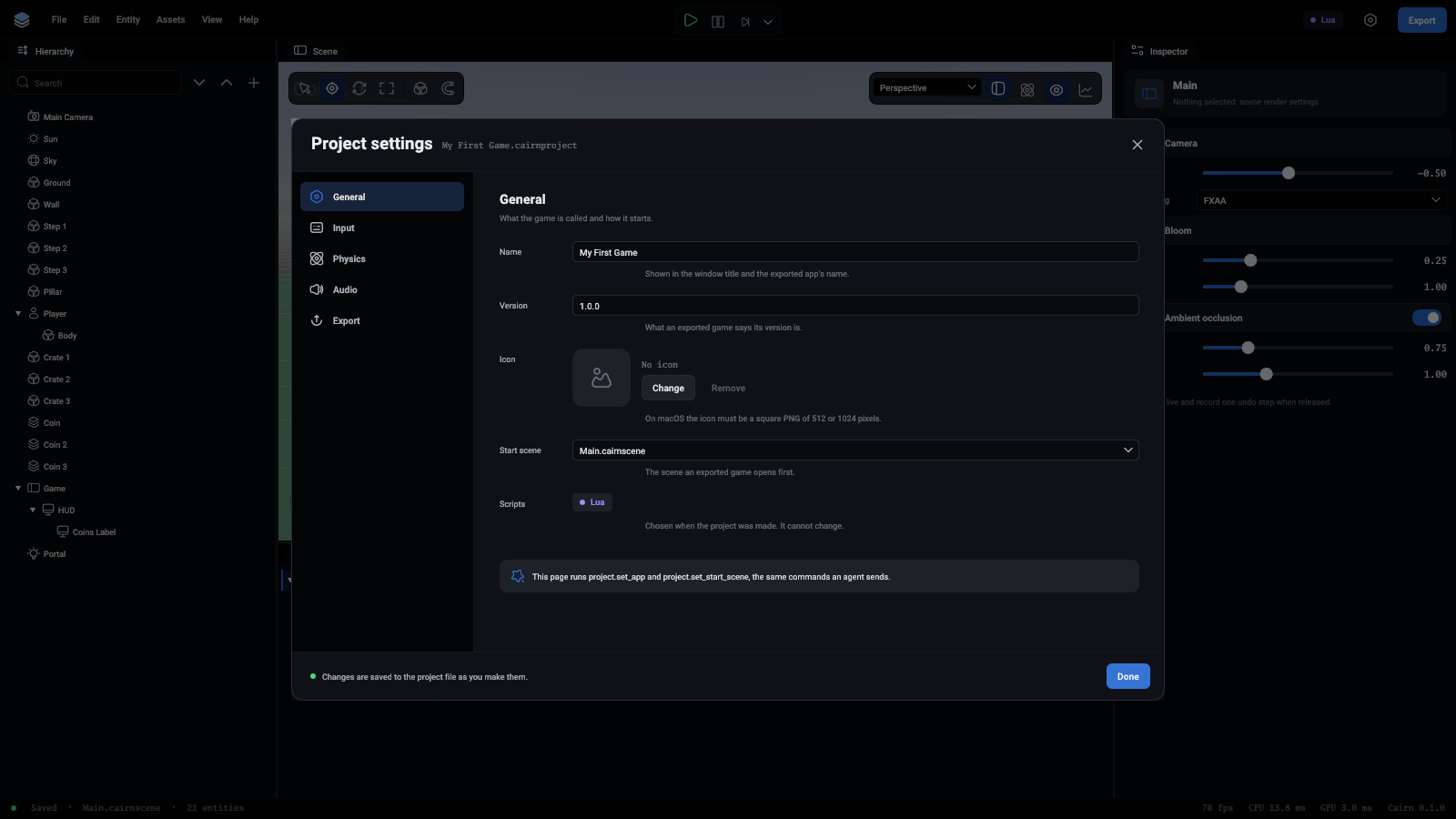
General
Input
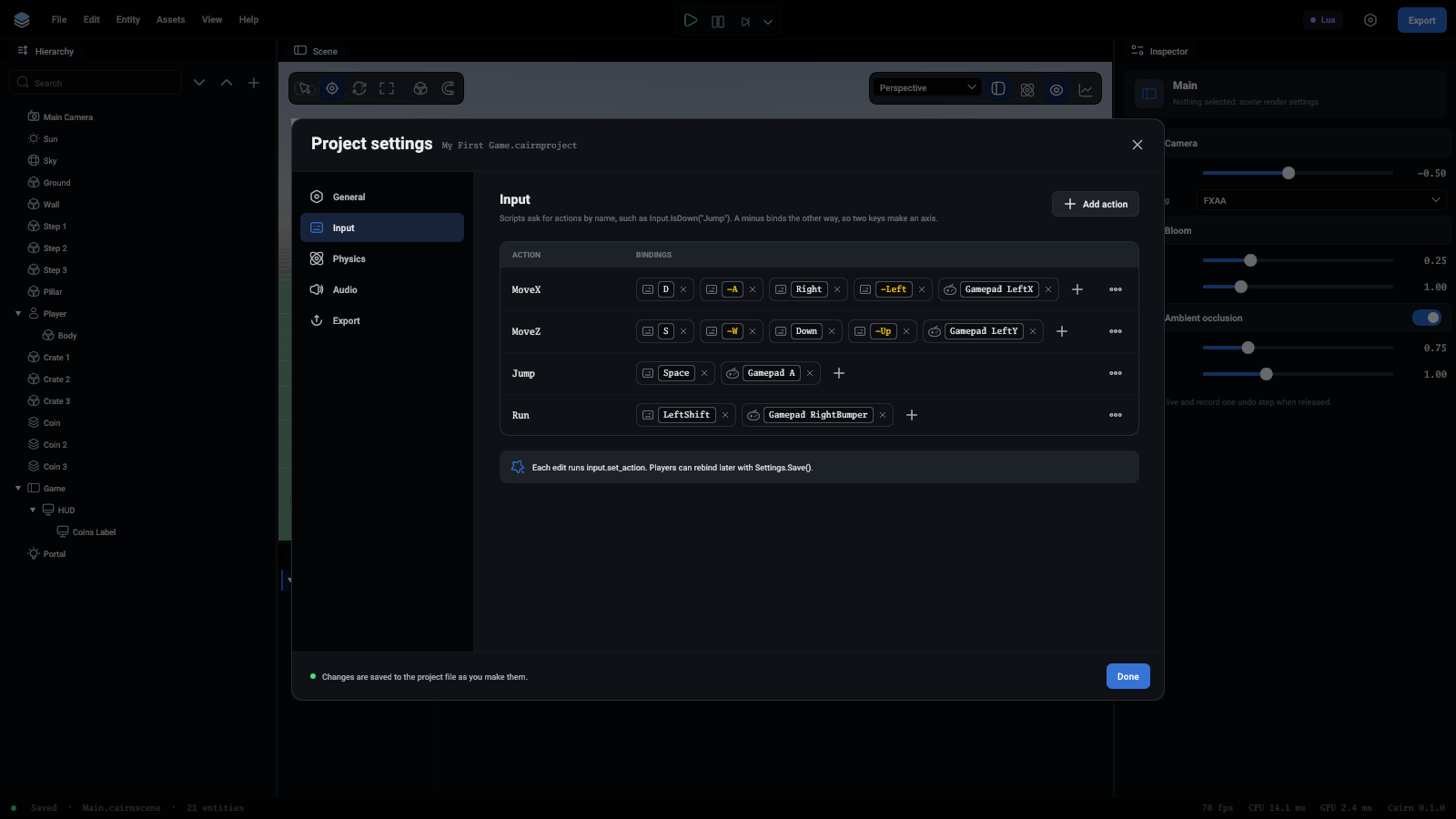
The actions scripts ask about by name, each with the keys, buttons and sticks that drive it. A binding shows whether it is a key, a mouse button or the gamepad, and one that pushes the other way has a minus in front, in yellow.
- The cross on a binding takes it away.
- + adds one. Press Press a key and then the key itself, or type to narrow the list:
Space,Mouse Left,Gamepad A. - Tick The other way to make a binding push the action to -1. Two keys bound opposite ways make an axis:
Dand, the other way,A. - Add action at the top makes a new one. It starts with Space, which is one click to change.
- The ... at the end of a row has Remove action.
See Input for how scripts read actions.
Physics
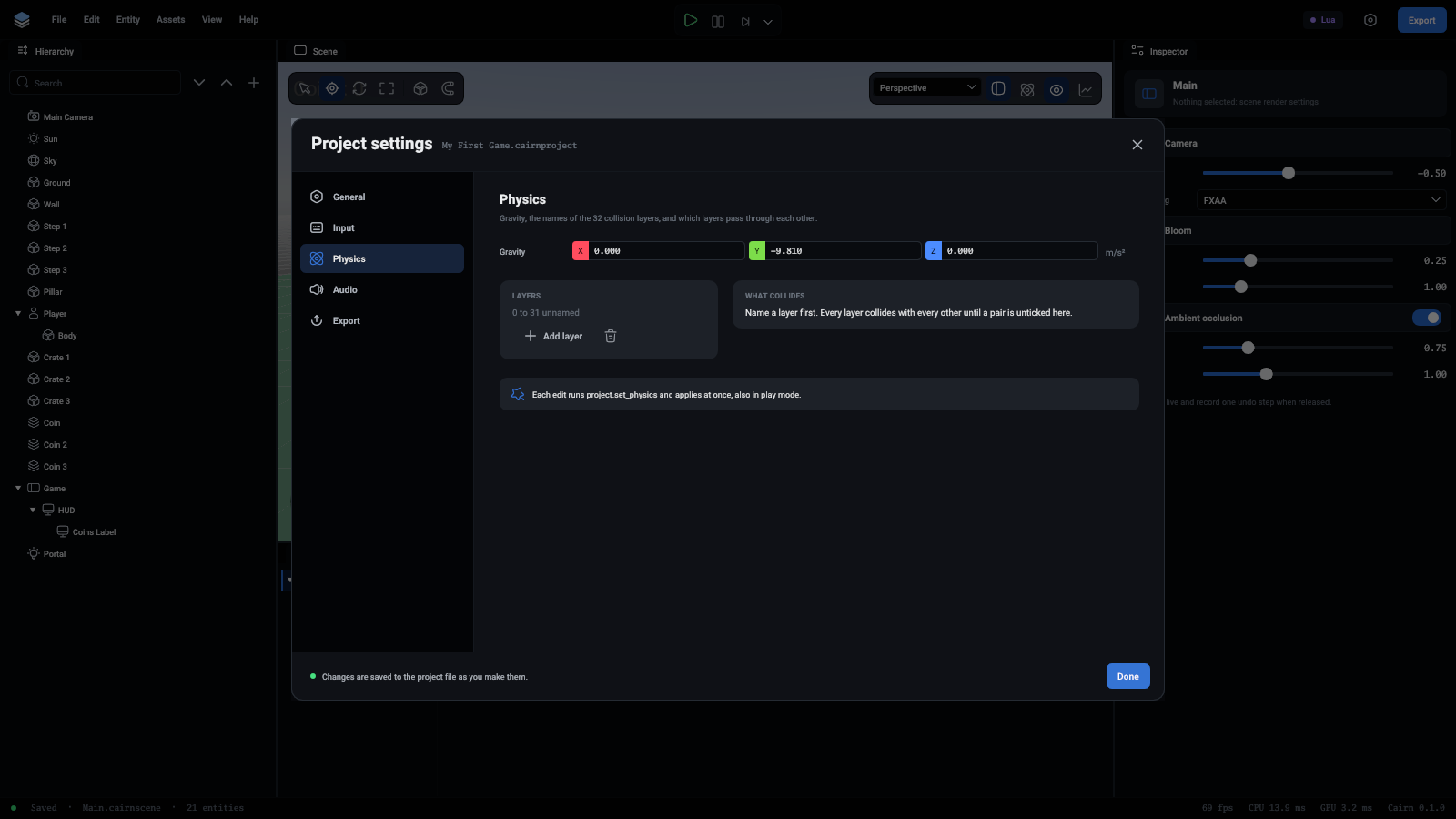
Gravity is the pull on every body, as a vector. The default is 9.81 downwards.
Layers names the layers an entity can be on. An entity's Layer is one of these by number, and the first is layer 0. There can be up to 32. Add layer names the next one, and the bin takes the last name away.
What collides has a tick for every pair of named layers. Untick a pair and their bodies pass through each other and report no contact. A layer can be unticked against itself, which stops its own bodies from colliding: enemies that walk through each other, for one.
Rays and overlap queries from scripts hit every layer whatever is ticked here.
Audio
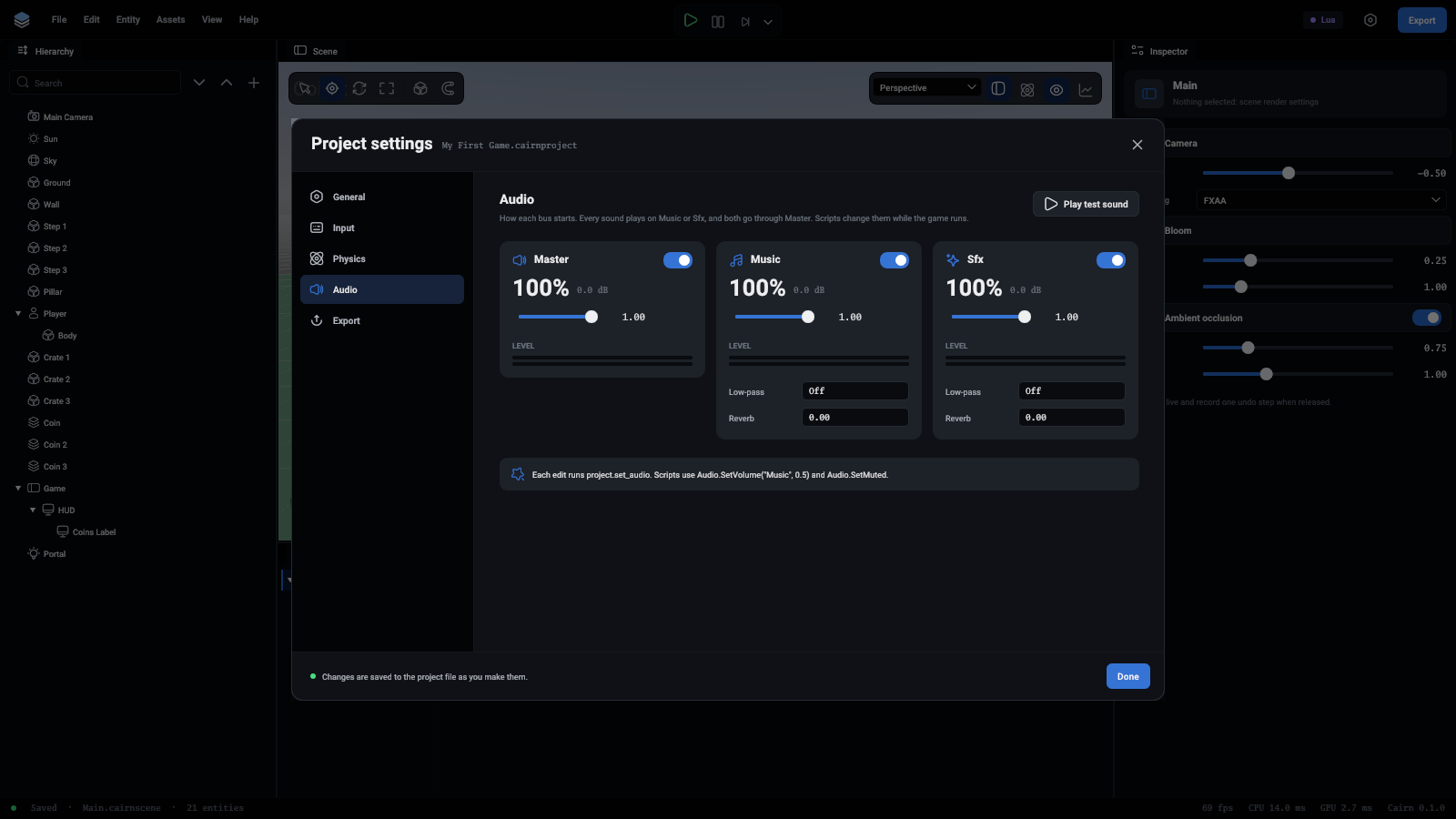
How each bus starts out. Every sound plays on Music or Sfx, and both go through Master. Each bus has a card:
- The switch mutes the bus. A muted bus keeps its volume for when it is switched back on.
- The slider is its volume, shown as a percentage and in decibels.
- The meters show how loud it is playing, left and right, while something plays.
- Music and Sfx also have a Low-pass, which takes out frequencies above a cutoff in hertz (Off is none), and a Reverb, from 0 to 1.
Play test sound plays a short chime on the Sfx bus, to hear the settings with in a project that has no sound of its own yet.
A player's own volumes, once saved with Settings.Save(), are laid over these. The effects and mutes stay the project's. Scripts change all of it while the game runs: see Audio.
Export
A summary of what an export takes from the project, and a button that opens the Export window.
From an agent
Each setting is a command: project.set_app, project.set_start_scene, input.set_action, project.set_physics and project.set_audio. The window runs these same commands, and each page says which at its foot.