
Hierarchy
The hierarchy is the tree of every entity in the scene. An entity under another is its child: it follows its parent's transform, and is switched off with it.
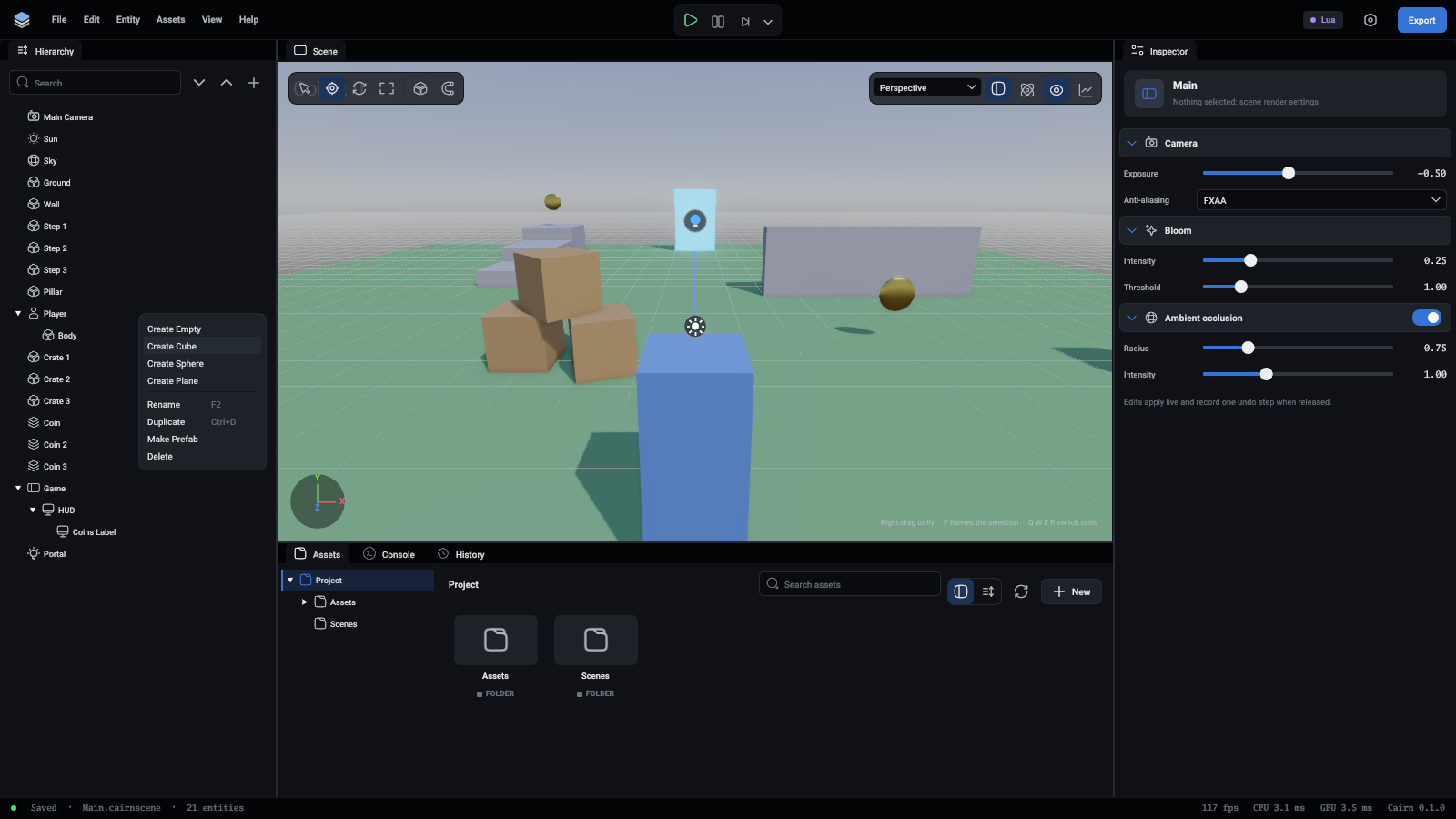
Rows
Each row has an icon for what the entity is, worked out from its components: a camera, a sun for a directional light, a bulb for a point or spot light, a globe for the sky, a person for a character, a note for a sound, sparks for particles, a screen for UI, a letter for text, and a cube for anything that draws a mesh. An empty entity that holds others is a group.
The selected row is tinted, with a blue line down its left side. A row that is switched off, or is under one that is, is faded.
Selecting and renaming
- Click a row to select it. Ctrl-click (Cmd on macOS) adds a row to the selection or takes it away.
- Double-click a name, or press F2, to type a new one. Enter keeps it and Escape does not. The rename is one undo step.
- Delete or Backspace deletes the selection while the hierarchy has the keyboard.
Making entities
The + button beside the search, and a right-click on the empty space under the tree, offer the same four items: Create Empty, Create Cube, Create Sphere and Create Plane. A new entity lands at the top of the tree.
Right-click a row for its own menu. Its create items make the new entity a child of that row. It also has Rename, Duplicate, Make Prefab and Delete. Make Prefab saves the entity and everything under it as a file in Assets/Prefabs and turns it into an instance: see Prefabs.
Moving entities in the tree
- Drag a row onto another to make it that row's child. Its transform values stay as they were and now count from the new parent, so it may move in the world.
- Drag a row to the top edge of another to put it just before that one, among the same parent's children. A line shows where it will go. Order matters: scripts start in this order, and UI is drawn in it.
- Drag a row onto the empty space under the tree to move it to the top level.
Switching entities off
The eye at the end of a row switches the entity off, with everything under it. The eye shows when the mouse is over the row, and always for an entity that is off. An entity that is off is not drawn, has no physics and plays no sound, and its scripts get no updates. It is still in the scene and the file. Scenes and entities has the details.
Copying
Ctrl+C copies the selected entities with everything under them, Ctrl+X cuts them and Ctrl+V pastes them. A copy is kept as text, so it can be pasted into another scene. Ctrl+D duplicates in place.
Search and the tree
Type in the search box to list only the entities whose names have that text in them, as a flat list. Clear it to see the tree again.
The two arrows beside the search open every entity that has children, or close them all. The search row stays at the top while the tree scrolls under it, so it is always in reach in a big scene.