

Placing scenes
A scene can be placed inside another scene, as many times as you like, and each copy works like an entity. Make a fence once as a scene of its own, place it ten times in the level, and when you change the fence's collider in its scene, all ten fences get the new collider. Each copy keeps what you changed on it, such as its position.
Use it for anything that exists more than once (coins, enemies, trees, barricades) and for parts of a game you want to build on their own, such as a pause menu.
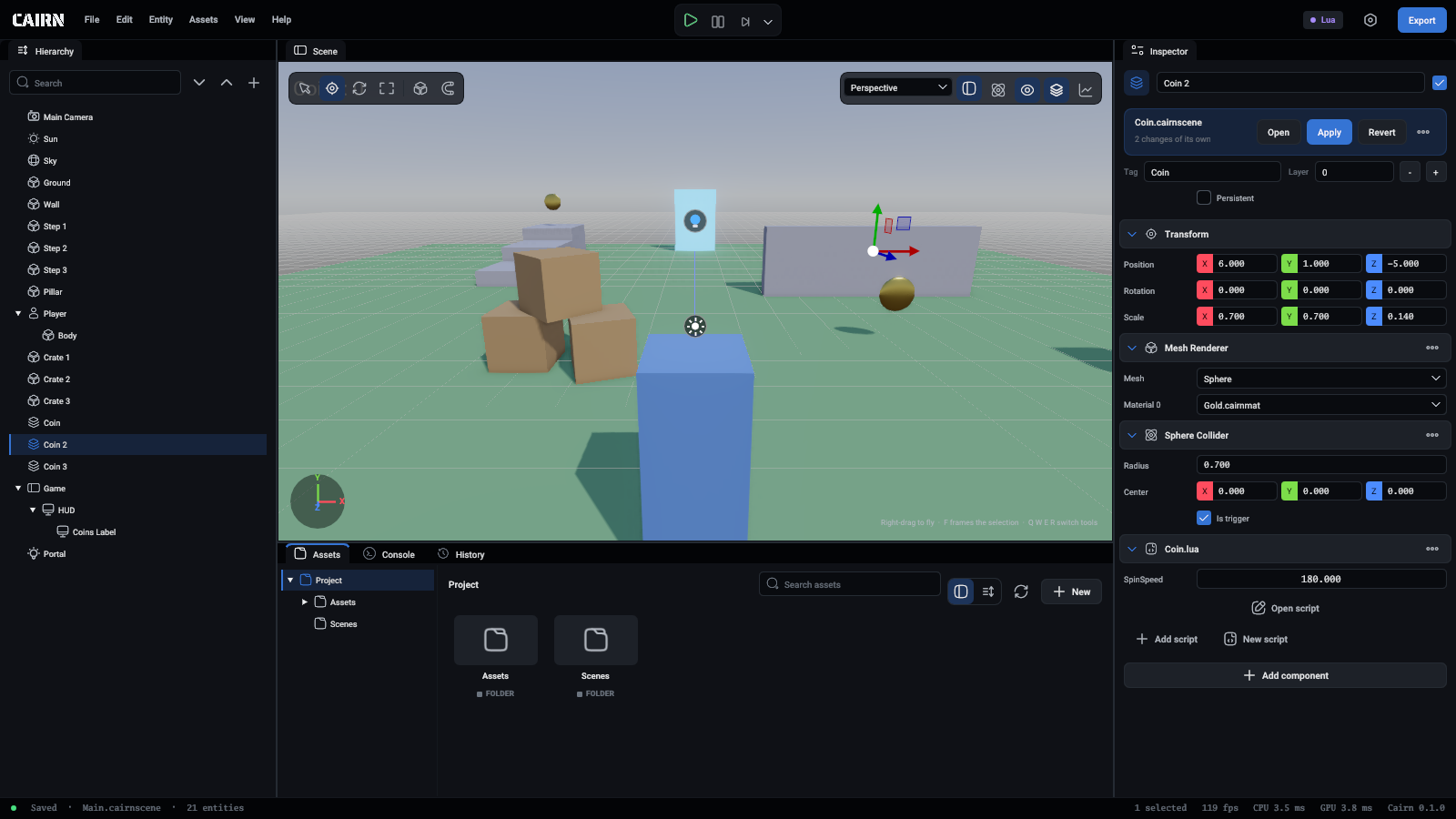
Make a scene to place
There are two ways:
- Right-click an entity in the hierarchy and choose Save as Scene. The entity and everything under it are saved as
Scenes/<name>.cairnscene, and the entity becomes the first placed copy of it. - Make a new scene with + New in the Assets panel, build it, and save it.
A scene with one top entity is placed as that entity: a fence is one Fence in the hierarchy. A scene with several top entities comes in under one more entity, named after the scene. That entity is not in the scene's file, so its name, position and anything you add to it belong to the copy.
Only the entities come along. The placed scene's own render settings are used only when it is the open scene.
Place it
- Drag the scene from the Assets panel into the viewport. It lands where you let go.
- Right-click it in the Assets panel and choose Place in scene.
- Right-click in the hierarchy and open Place Scene. Type to narrow the list, and press Enter to place the first one left. From a row's menu the copy goes under that row.
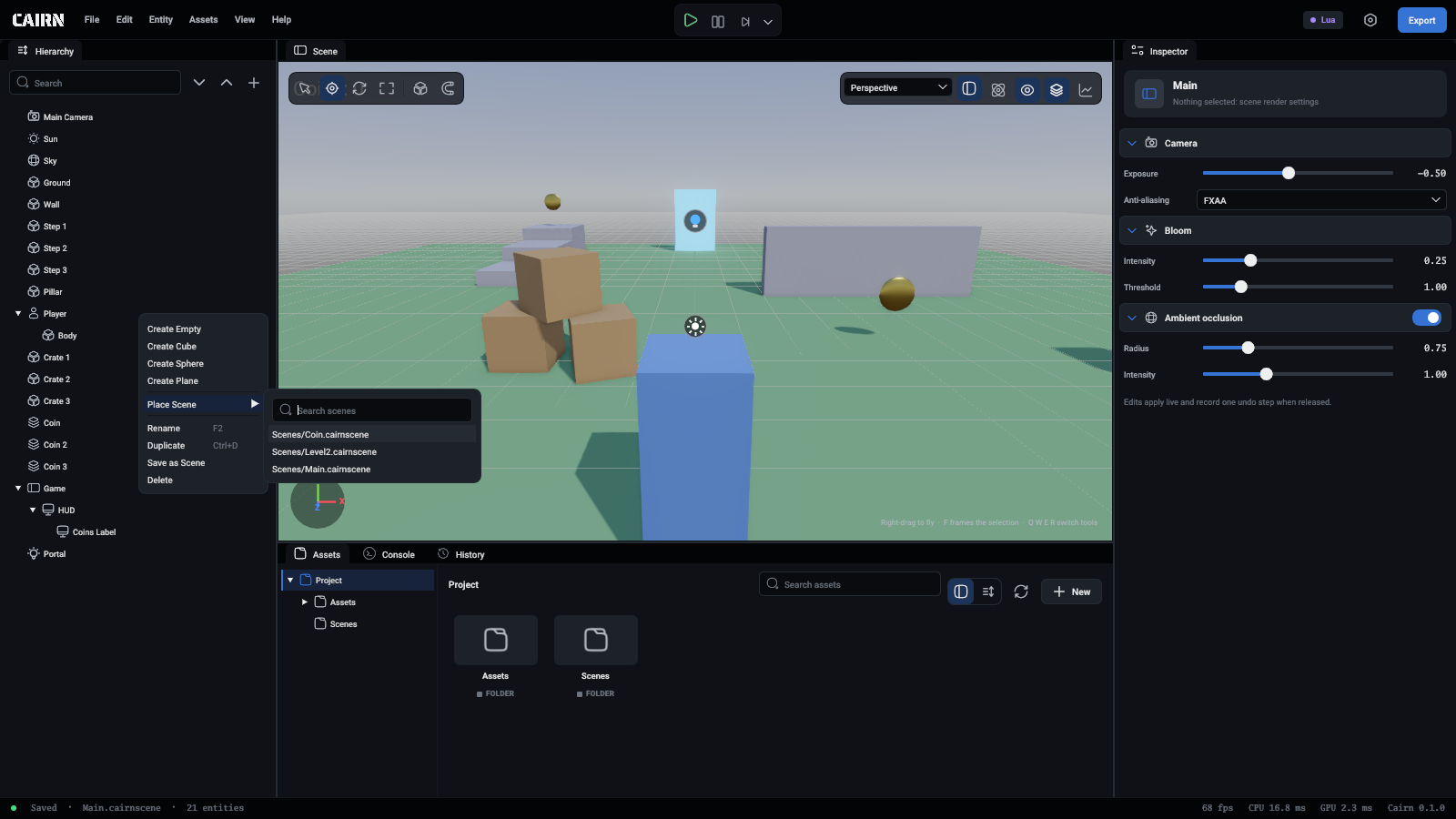
Double-click a scene to open it, as before.
A scene cannot be placed inside itself, or inside a scene it holds. The editor says so in the console.
Change every copy
Select any copy and press Open on its card. The editor opens the scene it came from and shows the way back over the viewport, as Main > Coin. Change what you need and save. Click Main and the level opens again, with every copy changed.
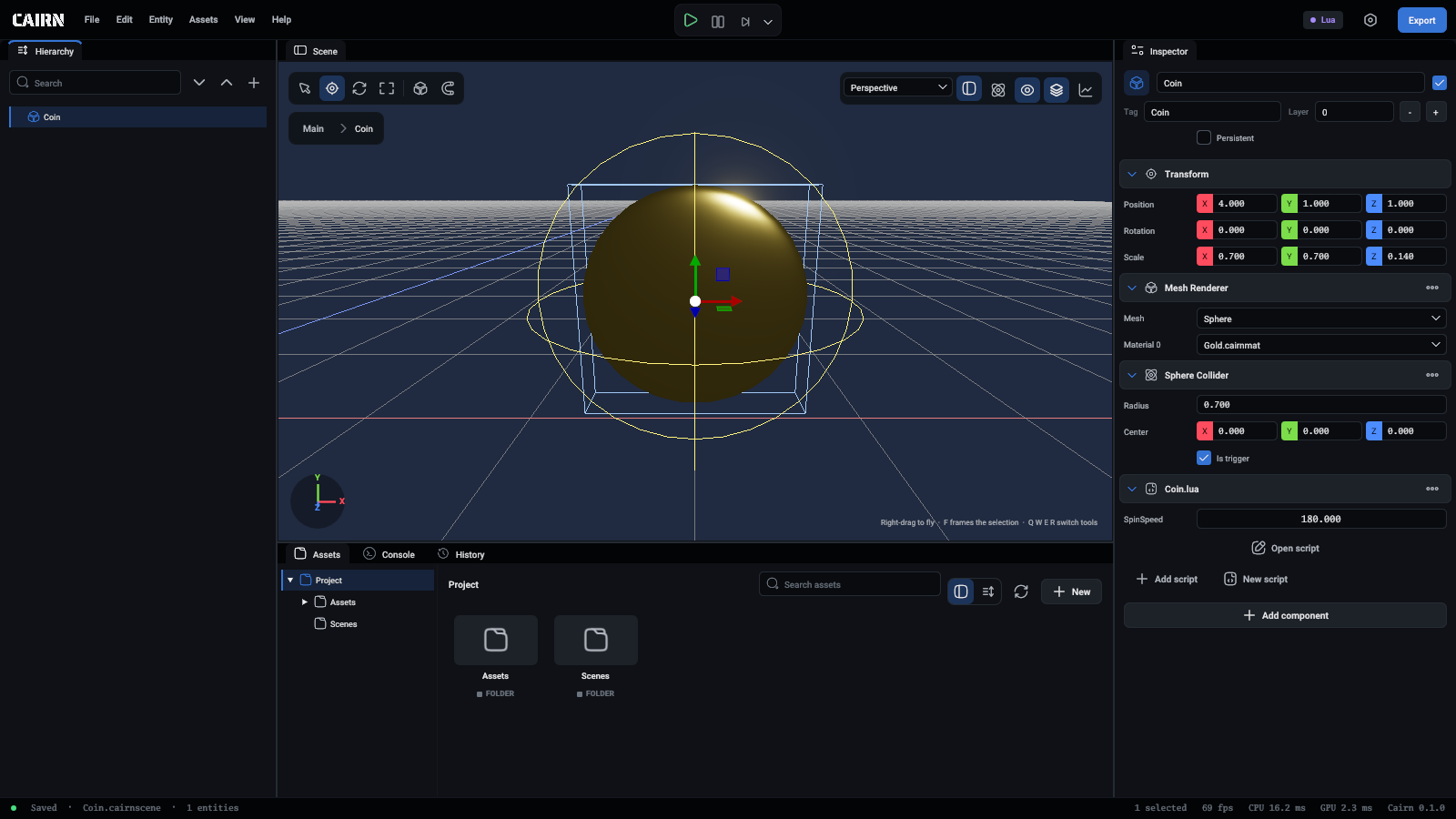
If the level has unsaved changes, the editor asks first, as it does before opening any scene. Going back reads the level from its file again, so its undo history starts again.
A scene with no sun and no sky, as a part saved to be placed usually is, gets a light of the editor's while you edit it. The light is not saved and the game never sees it.
Change one copy
Change a copy in the level as you would any entity. What you change stays that copy's own, and later changes to its scene reach it everywhere else. The card counts the copy's own changes and has:
Apply is one undo step that puts back both the scene file and the level. A copy's top entity always keeps its own position and rotation.
From a script
A script places a copy while the game runs with Scene.Instantiate, and entity.Instance says which scene an entity was placed from:
Scripts inside a placed scene work as they do anywhere. A Field.Entity that points at another entity of the same scene points at that entity in the same copy, so a zombie's script finds its own arm and not another zombie's.
A menu in its own scene
Build a pause menu as a scene whose top entity is a UI Canvas, with nothing of the level around it. Place it in the level once, switch it off, and have the pause script switch it on. See UI and text.
While you edit the level, the Game UI switch over the viewport hides every canvas, so a menu or HUD that is on does not cover the level. It changes nothing in the scene or the game.
In the file
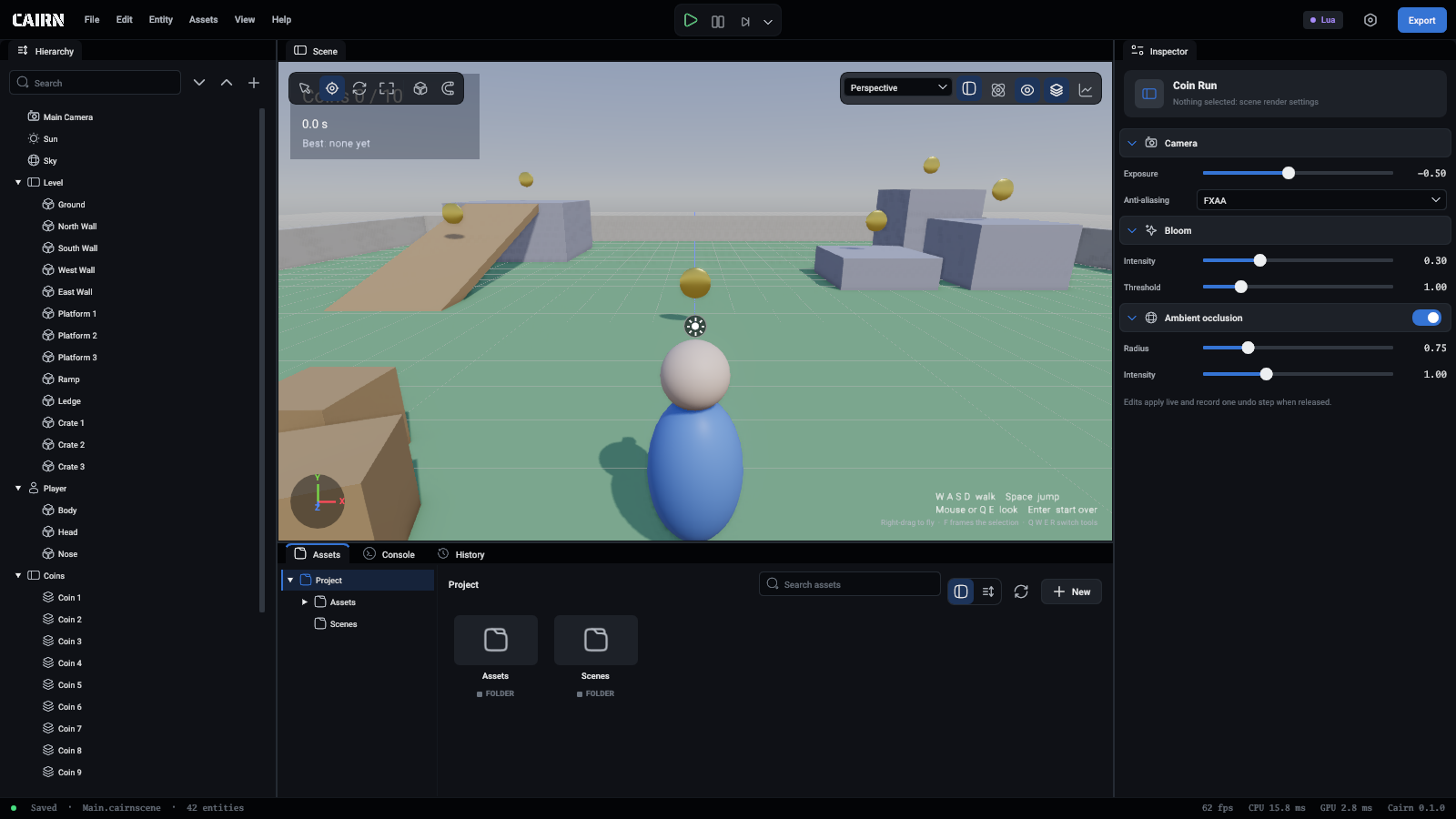
A scene file stores a copy as only what it changed:
So a change to the placed scene reaches every copy that did not change the same thing. A copy that deleted an entity of its scene lists it under RemovedFromPrefab, and an entity the scene gains later appears in every copy.
Agents
An agent places a scene with scene.place and saves an entity as one with entity.save_as_scene. To change every copy it changes the placed scene's file directly, without opening it, by giving file to an entity command:
The copies in the open scene follow at once. entity.get and entity.list say which scene a copy came from, scene.uses lists where a scene is placed, and entity.scene_changes, entity.apply_to_scene, entity.revert_to_scene and entity.unpack_scene do what the card does. See Commands.
Prefabs from before
Cairn used to have prefabs, .cairnprefab files. They are scenes now. When the editor opens a project that has them, it renames each to .cairnscene, with its .meta file so its ID and everything that uses it stay, and rewrites scripts that name one by path or use Field.Prefab. If a new name is taken it renames nothing and says which file is in the way. The old prefab.* agent commands still work.
An example
Zombie Survival, among the samples in the hub, is built this way. Its barricade is one scene, Scenes/Barricade.cairnscene, placed in three doorways. Each copy's script has its own Section and Cost, which is all that differs between them, and the game script finds the copies by their tag. Its pause menu is a scene of its own with its own canvas, placed once and switched off, and the zombies, bullets and pickups are scenes the scripts place while the game runs.
Good to know
- A copy of a whole placed copy is another copy. A copy of part of one is ordinary entities.
- A scene with a copy of a scene that cannot be read does not load. Nothing is half-read.
- Copies in scenes that are not open follow when those scenes are next opened.