
Top bar and menus
The bar along the top of the window holds the menus on the left, the play controls in the middle and the project's own buttons on the right.
On macOS the bar is also the window's title bar. The window's close, minimise and zoom buttons sit at its left end. Drag an empty part of the bar to move the window, and double-click one to zoom it.
File
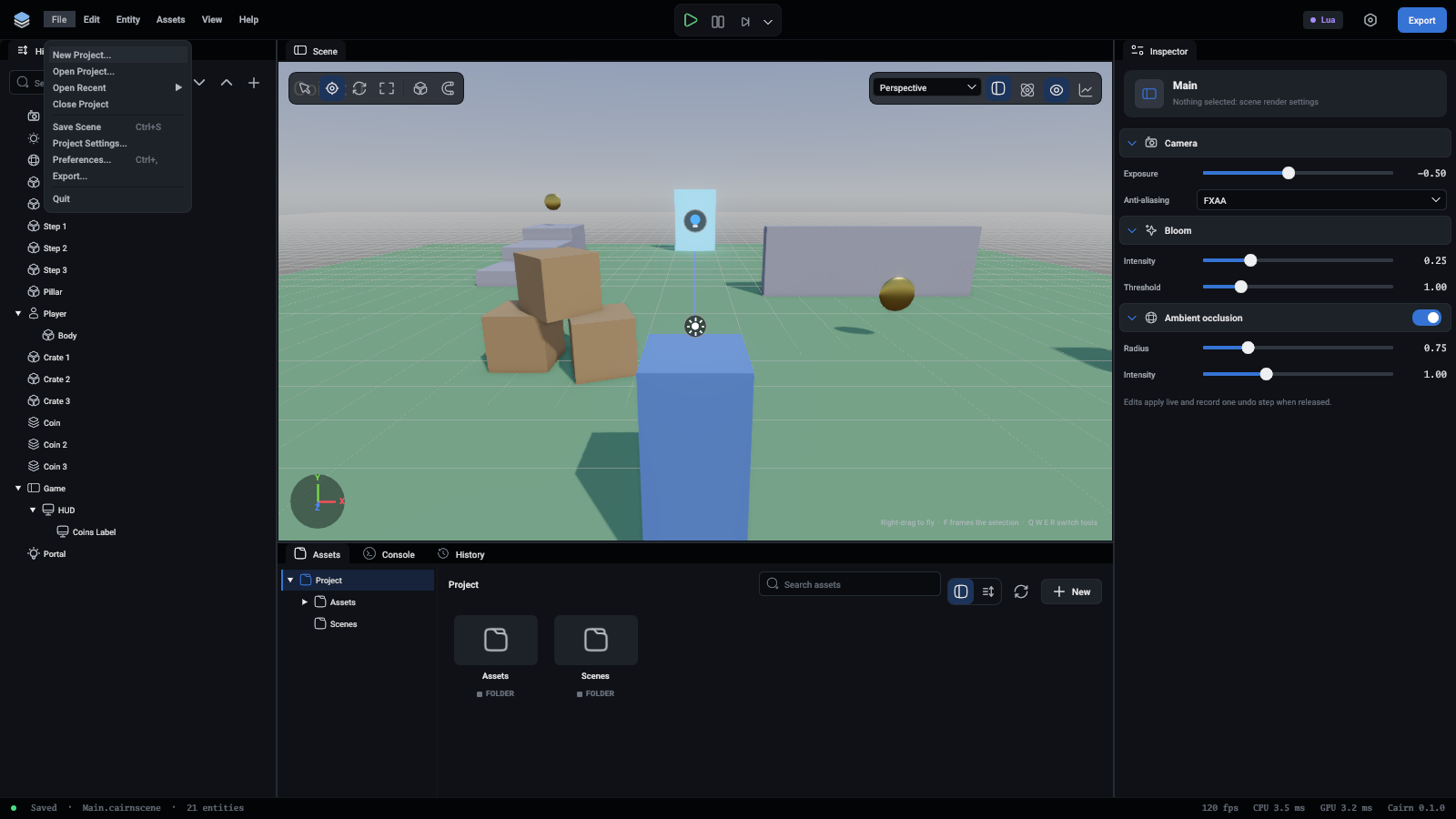
Closing the project, opening another one and quitting ask first when the scene has changes that are not saved.
Edit
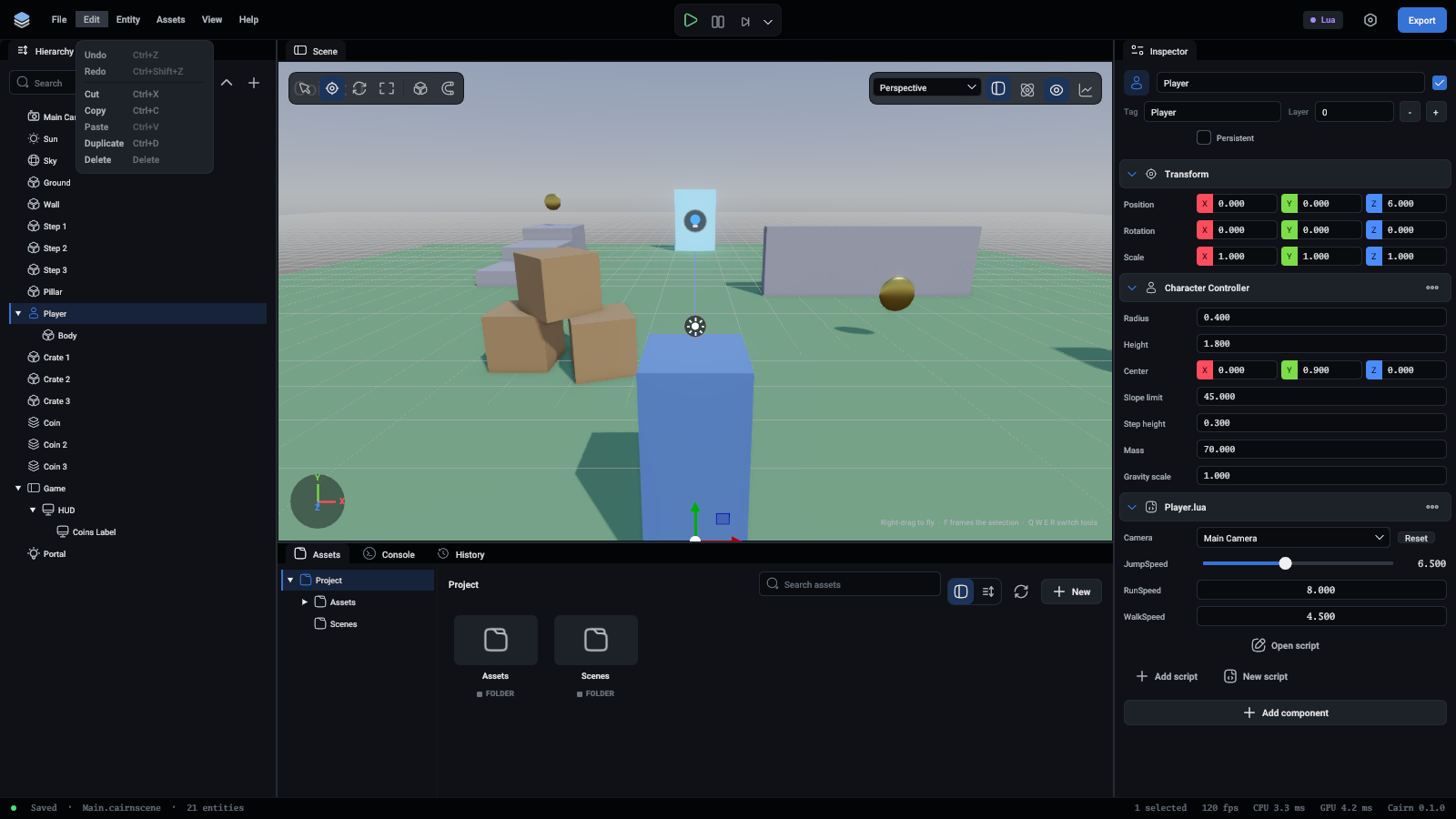
Undo and Redo name the change they would undo or redo, such as Undo Delete Entity. Every change to a scene is one step, and a whole drag of a value or a gizmo is one step too. The History tab lists them all.
Cut, Copy, Paste, Duplicate and Delete work on the selected entities, with everything under them. A copy is kept as text, so it can be pasted into another scene. These are off while the game plays.
Entity
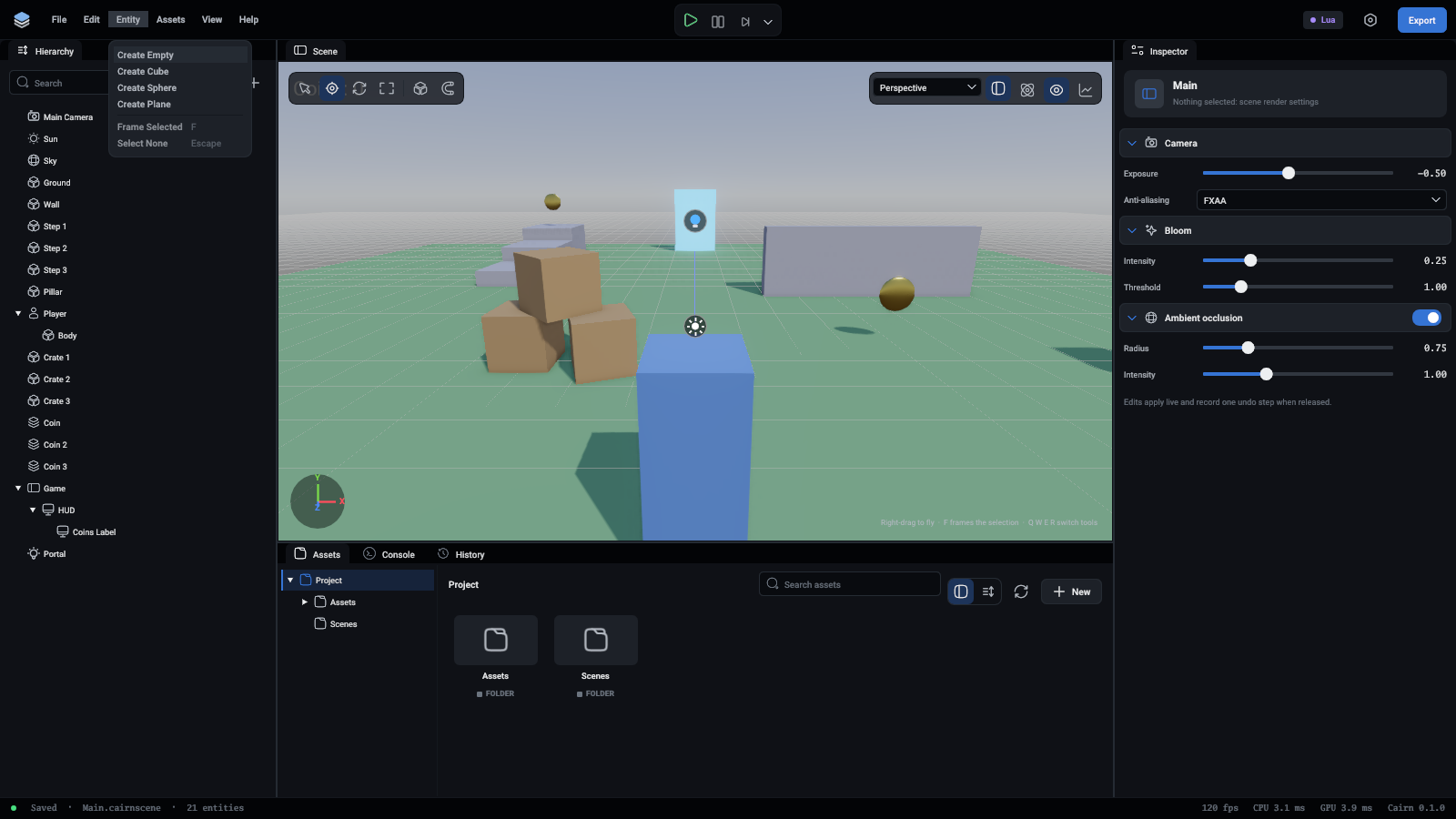
The top four items make an entity at the top of the hierarchy: an empty one, or one that draws a cube, a sphere or a flat plane. They are the same items as the hierarchy's + button. Give the new entity what it needs with Add component in the inspector.
Frame Selected (F) brings the selection into view in the viewport. Select None (Escape) lets go of it.
Assets
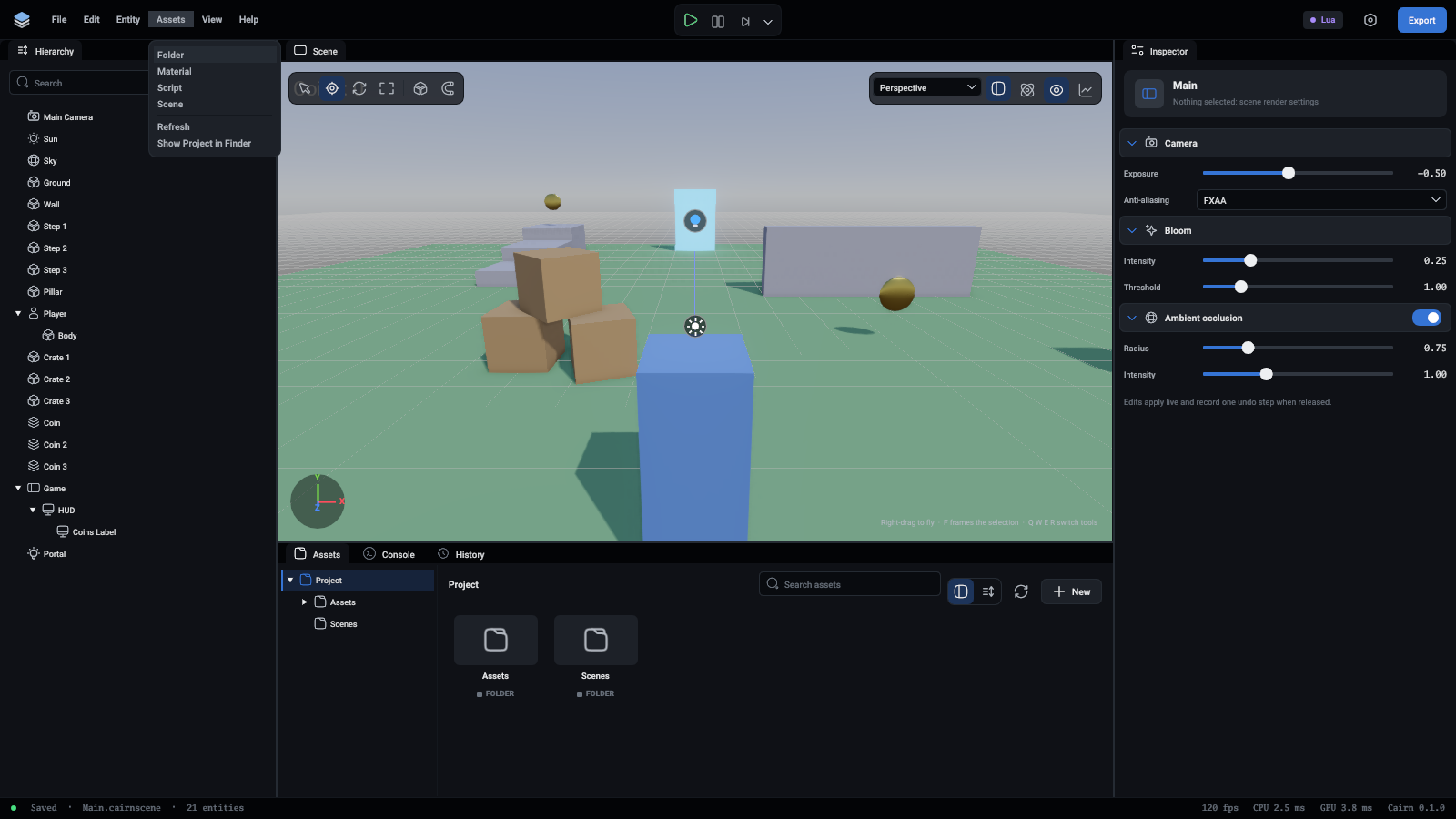
The first items make something new in the folder the Assets panel shows: a Folder, a Material, a Script or a Scene. They are the same as the panel's + New button. A new scene is offered only when the open scene is saved, because making one opens it.
Refresh looks at the project's files again. Use it after adding or changing files outside the editor. Show Project in Finder (or Explorer, or the file manager) opens the project's folder.
View
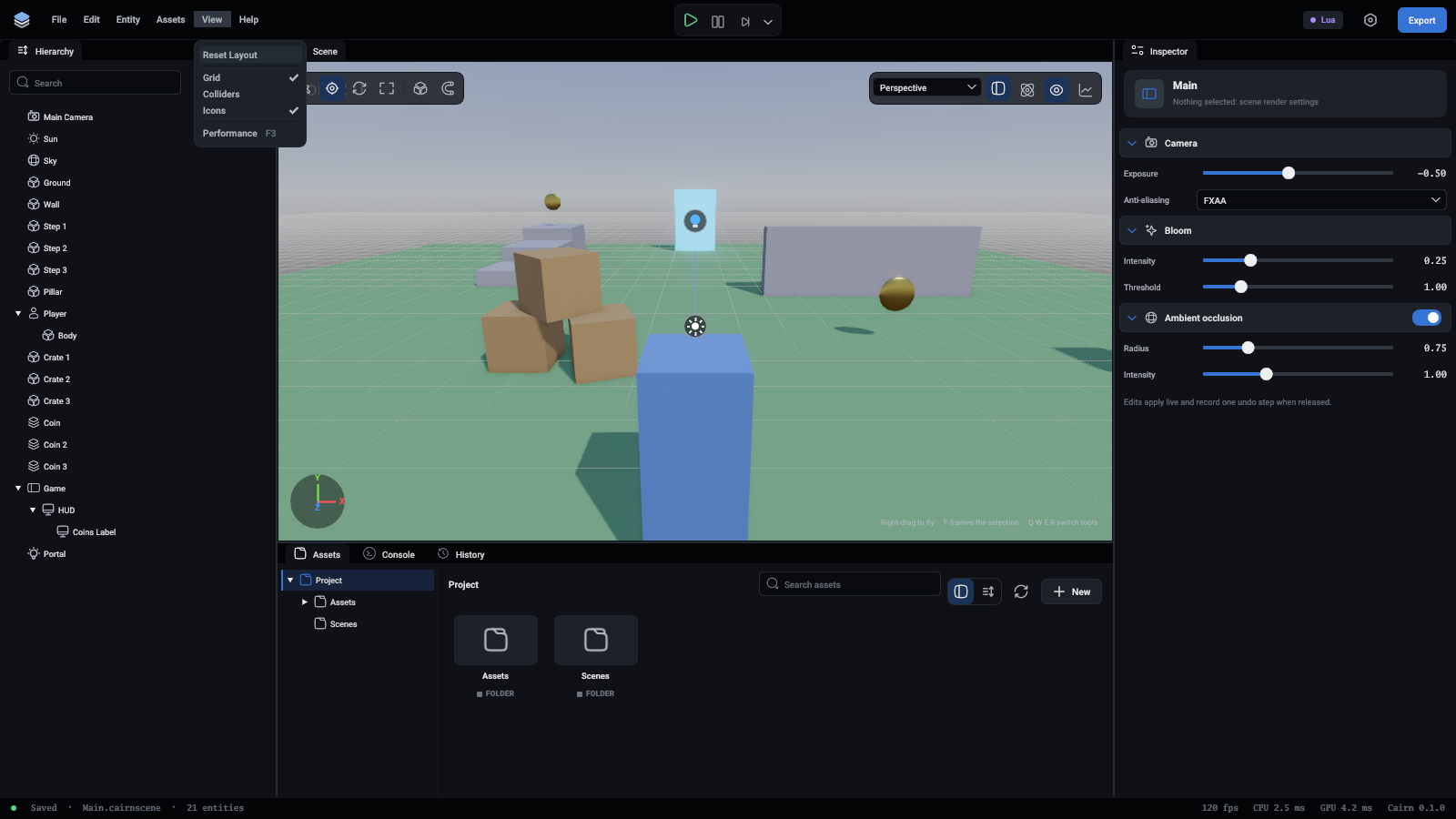
Reset Layout puts every panel back where it started. Your own layout is kept between sessions until you do.
Grid, Colliders and Icons are the same switches as the buttons over the viewport: the ground grid, the outlines of colliders and joints, and the icons of the things that draw nothing. Performance (F3) opens the Performance window.
Help
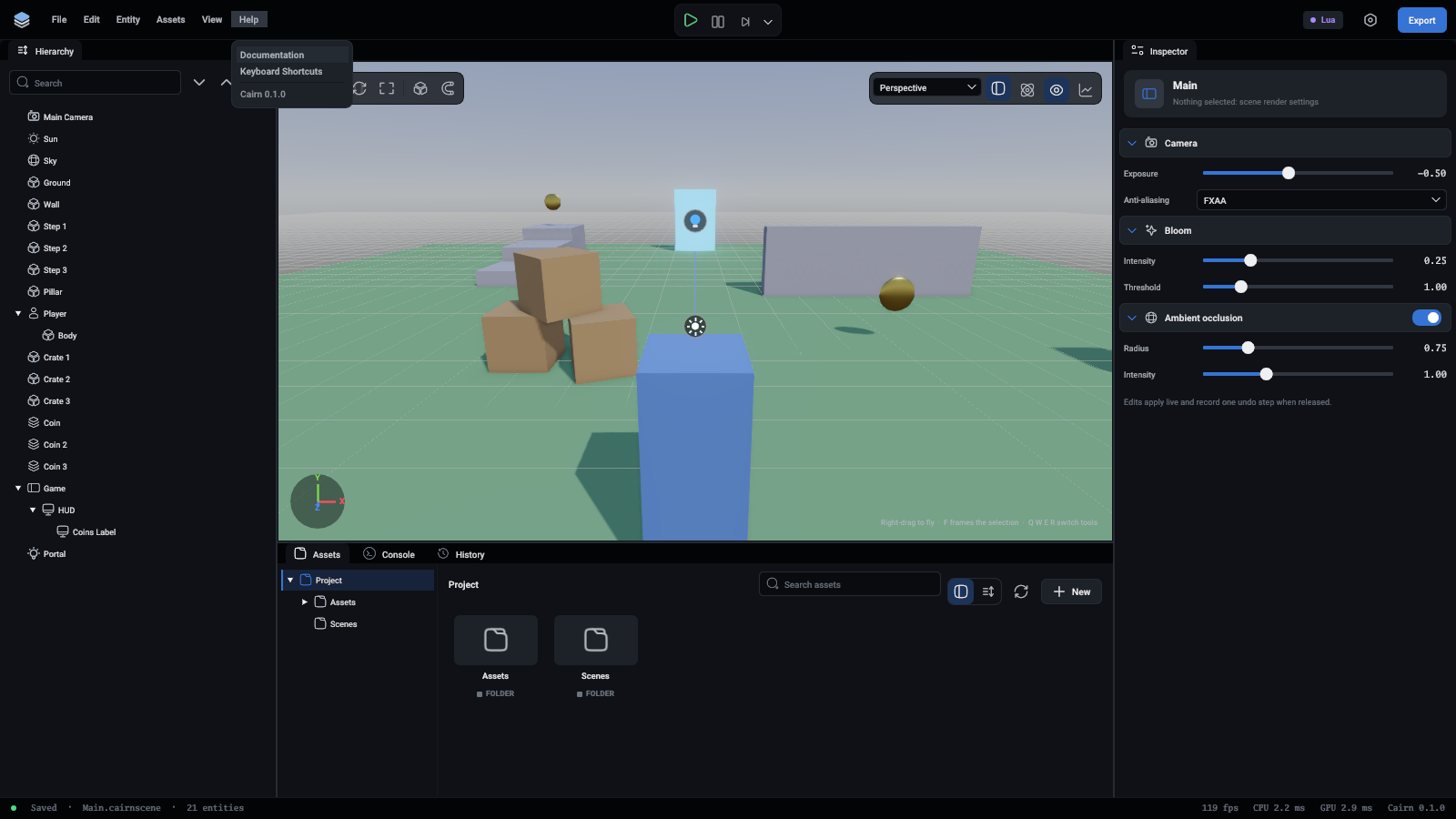
Documentation opens these pages in your browser. Keyboard Shortcuts opens the Keyboard page of your preferences, which lists every shortcut. The last line is the editor's version.
Play controls
In the middle of the bar:
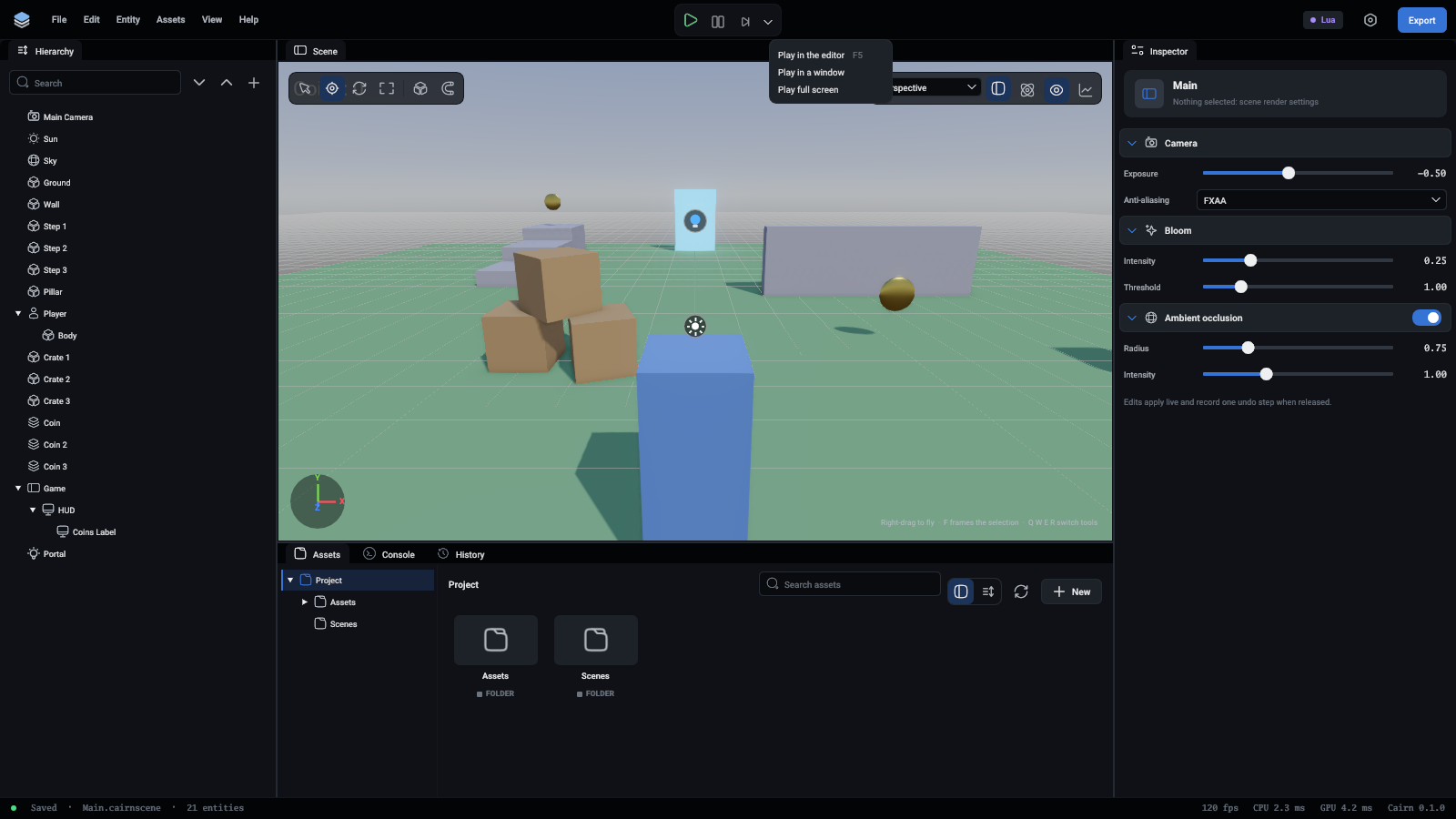
The arrow offers Play in the editor, which is the same as Play, Play in a window, which opens the game in a window of its own as a player would see it, and Play full screen. Play mode says more about each.
The right side
- A green Agent server tag with a port number while the command server is on, so an agent can drive this editor. Switch it in Preferences.
- Lua or TypeScript: the language the project's scripts are written in. It was chosen when the project was made.
- The gear opens your preferences.
- Export opens the Export window, which turns the project into a game.