
Viewport
The viewport is the scene, seen through the editor's own camera. That camera is not part of the scene and is never saved in it. The tab reads Scene while you edit, and Game while the game plays.
Moving around
With nothing selected, the view zooms and turns round a point ten units in front of you.
Selecting
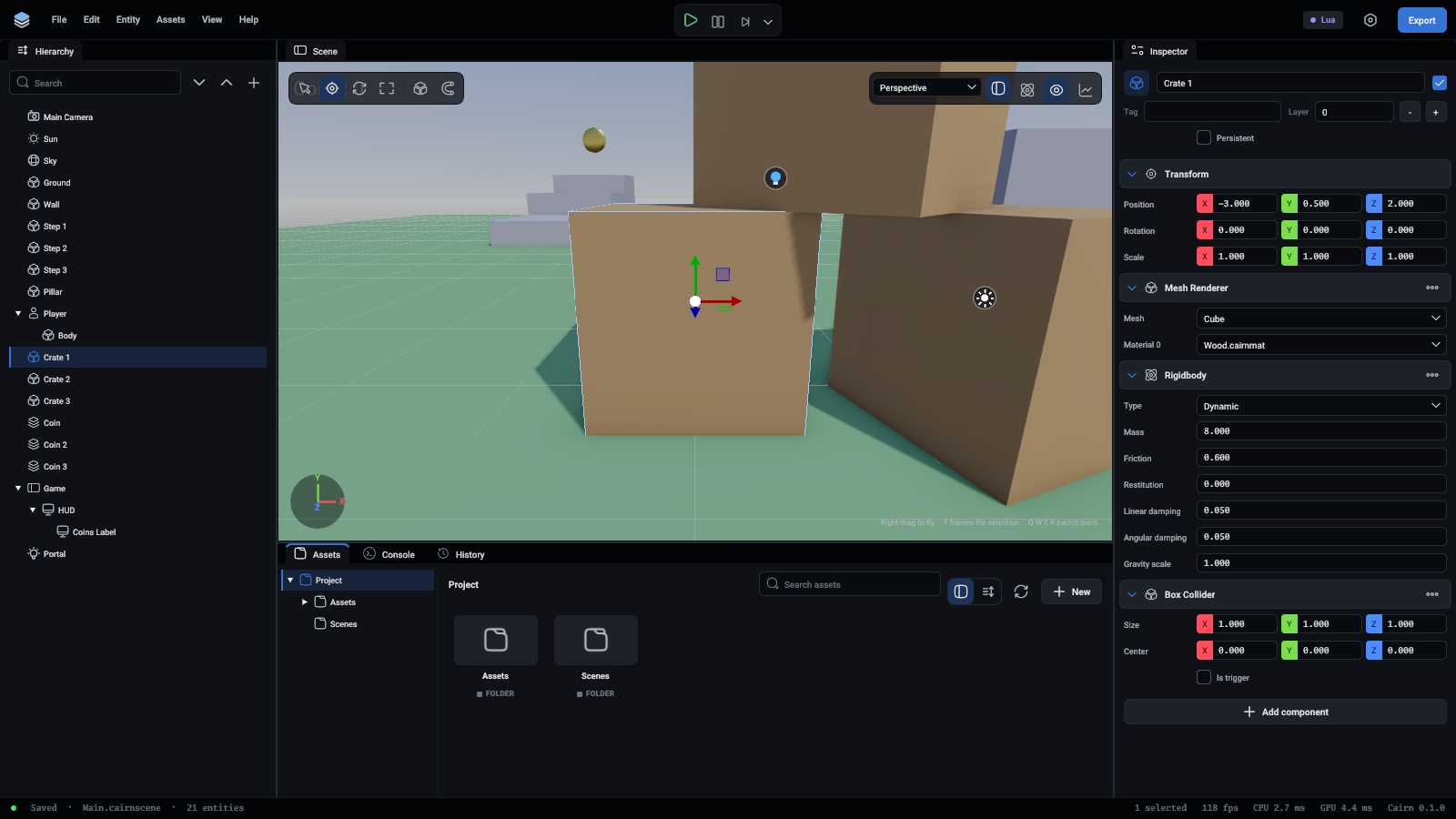
A click picks the nearest mesh under the mouse. The selection has a blue box round it, and the hierarchy and the inspector follow.
The tools
The toolbar at the top left holds the tools:
Hold Ctrl while you drag to flip Snap for that one drag. With several entities selected, the handles sit on the last one you picked and carry the others with it. A whole drag is one undo step.
View options
The toolbar at the top right changes what you see, not the scene.
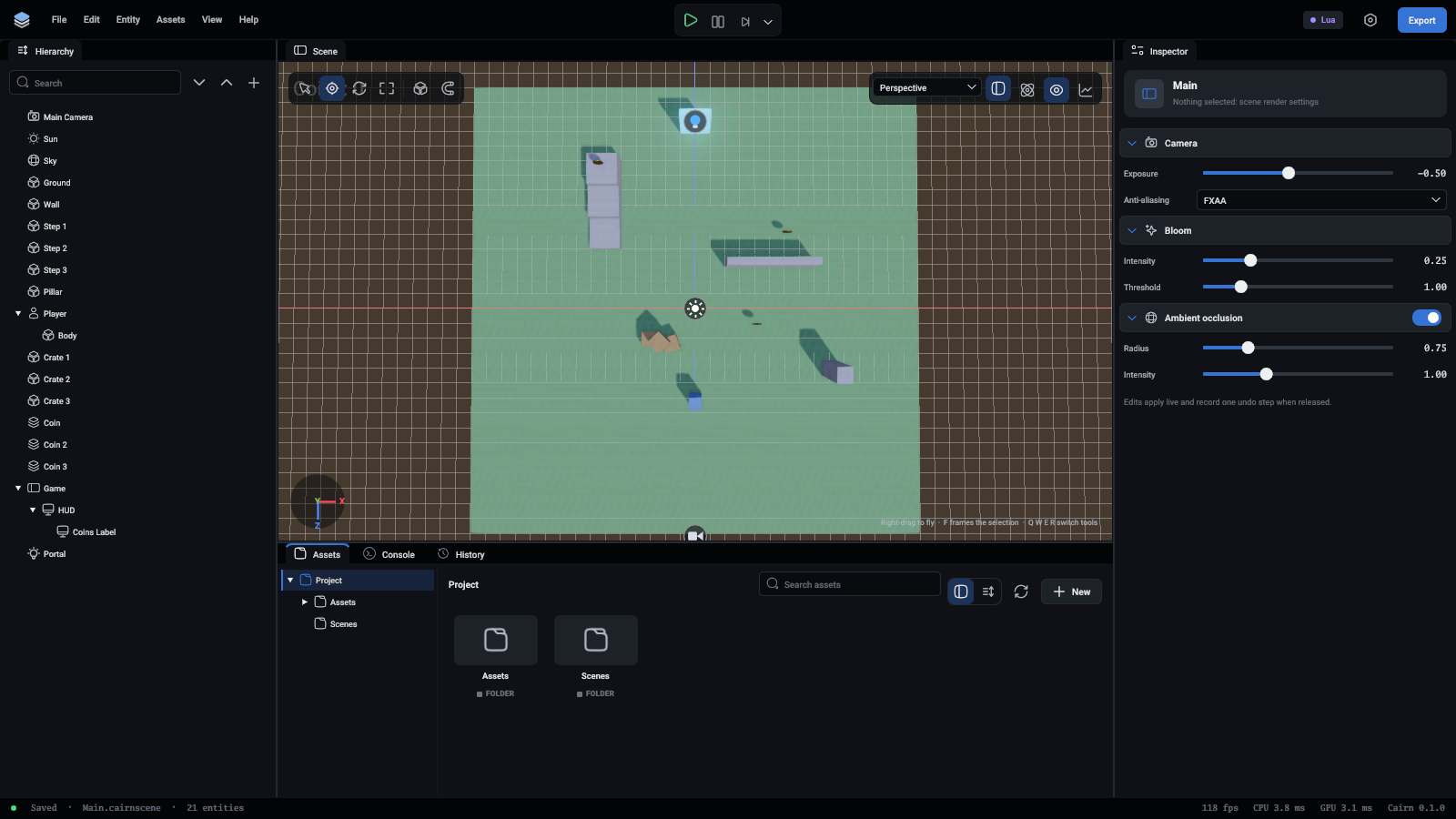
The list picks where you look from: Perspective, or straight down from the Top, or from the Front or the Right. Picking one turns the camera and keeps it where it is.
The buttons after it:
- Grid shows the ground grid.
- Colliders outlines every collider and joint. Green is static, orange dynamic, blue kinematic, yellow a trigger, cyan a character and magenta a joint. It is how you check that what collides matches what you see.
- Icons shows where the things that draw nothing are.
- Performance opens the Performance window.
- While the game plays there is one more, Game camera. See Play mode.
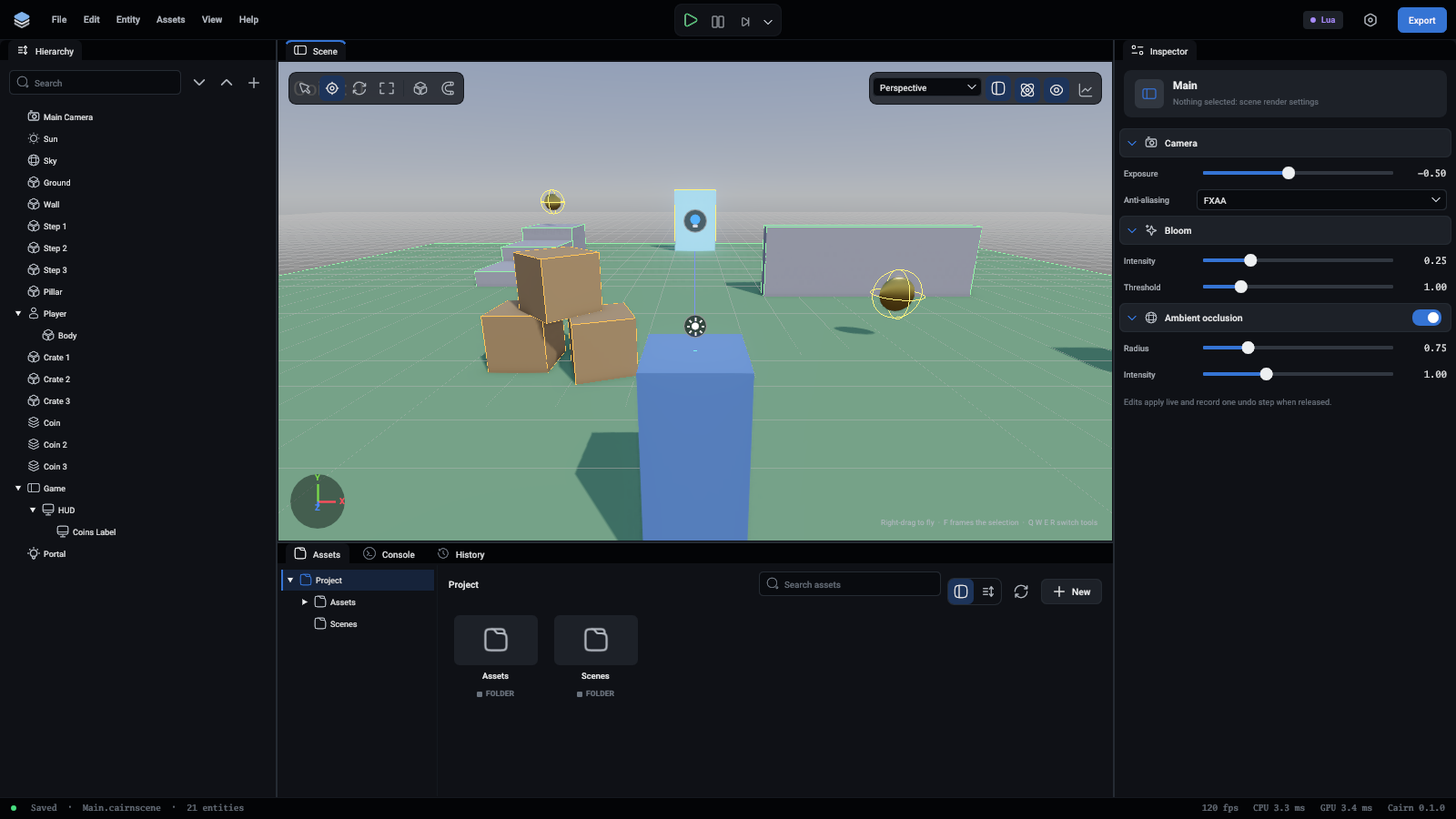
The axes in the bottom left corner show which way X, Y and Z point from where you look. Red is X, green is Y and blue is Z, as on the handles.
Icons for what draws nothing
Lights and cameras draw nothing themselves, and neither do sounds or particle systems, so each has an icon in the viewport. Click an icon to select what it stands for. A light's icon is in the light's colour.
Selecting one also draws the shape of what it does:
Camera preview
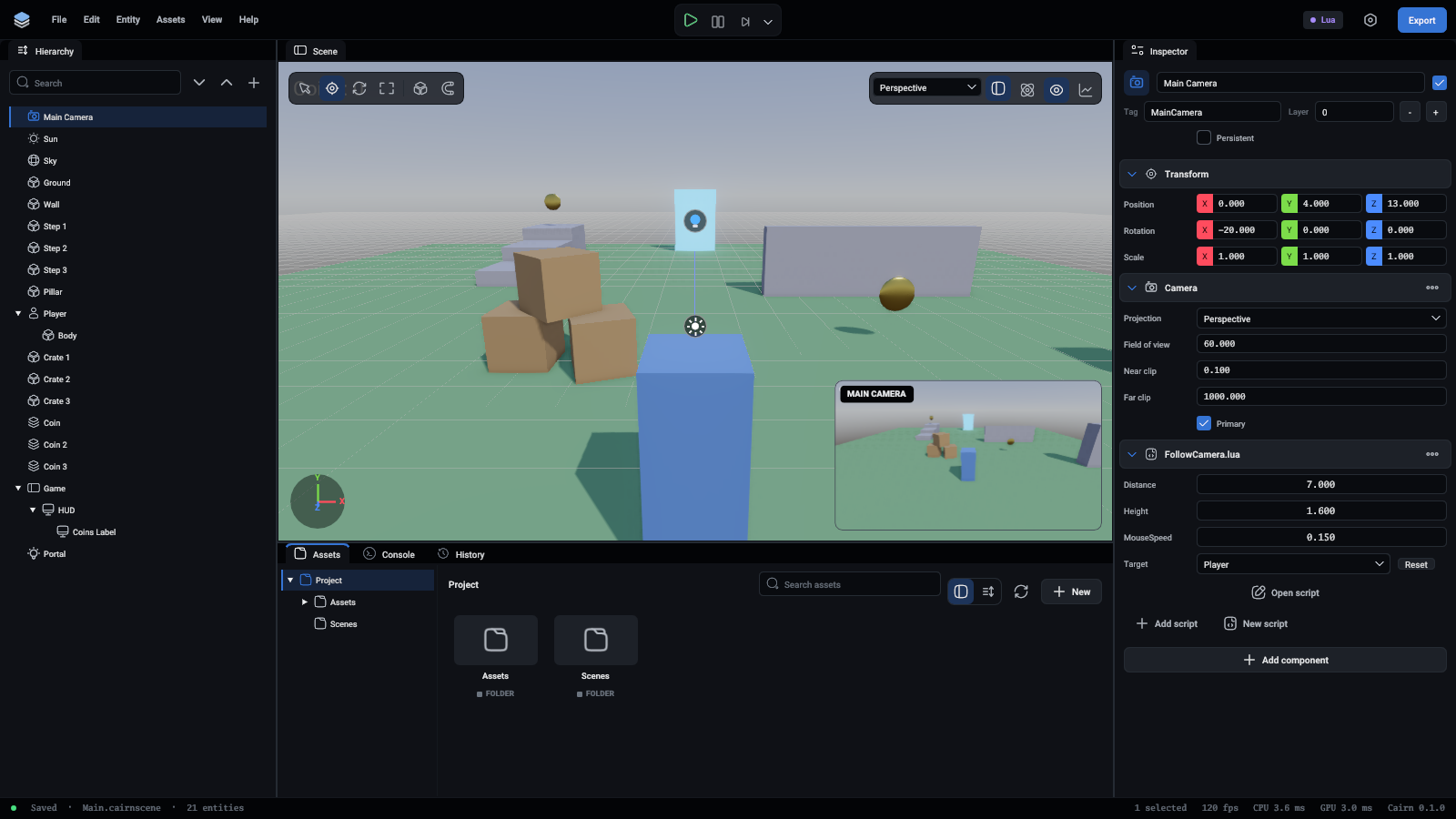
Select a camera and the bottom right corner shows what that camera sees, with its name on it. Move or turn the camera and the picture follows. It is how you frame a shot without playing the game.
Dropping assets in
Drag a model, a mesh or a prefab from the Assets panel into the viewport. It lands where you drop it: on whatever is under the mouse, or on the ground. It is one undo step.