
Cameras
A Camera component is the view the scene is drawn from. It looks down its entity's -Z axis.
Which camera is used
The game is drawn from the first camera with Primary ticked, in hierarchy order. A scene with no primary camera shows only the background colour.
To cut between cameras, untick one and tick another, or switch the entities on and off:
Settings
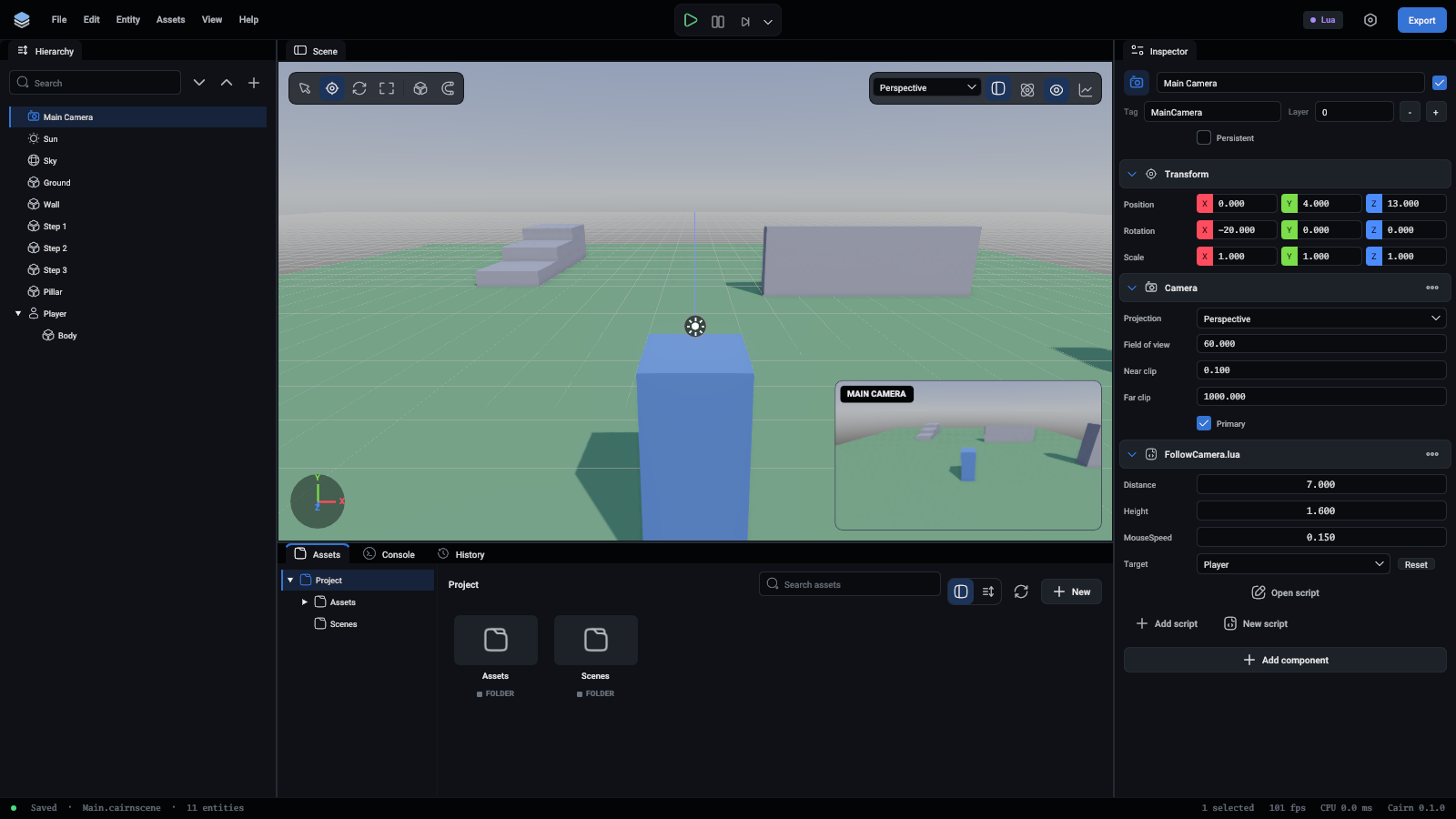
Every field is listed in Components.
Keep NearClip as large and FarClip as small as the scene allows. A very small near clip with a very large far clip makes distant surfaces flicker against each other.
Orthographic views
An orthographic camera suits a 2.5D game, a map, or a strategy view. Its OrthographicSize is how many world units fit from the bottom of the picture to the top, so a smaller number zooms in.
In the editor
The viewport looks through the editor's own camera, which is not part of the scene. In play mode it looks through the scene's primary camera, unless you turn off Game camera to fly around the running game.
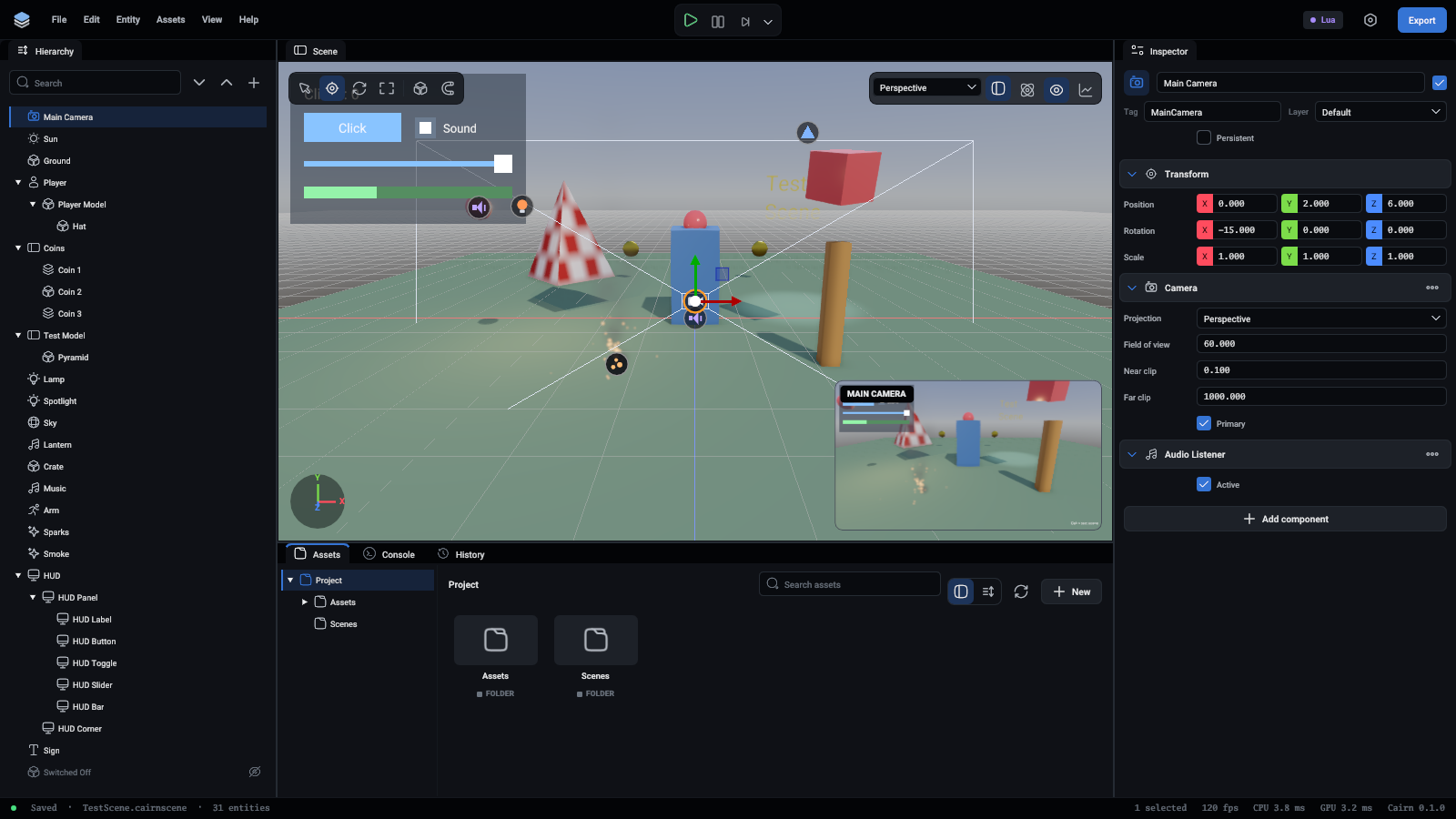
A camera has an icon in the viewport. Select it and its view is drawn as lines, out to a few units. A small picture in the corner of the viewport shows what the camera sees, so you can frame a shot without pressing Play.
From the picture to the world
A camera can turn a point of the picture into a ray, to find what the mouse is over:
ScreenToGround(x, y, height) gives where that ray meets flat ground, and WorldToScreen(point) goes the other way, for a marker drawn over something. Points of the picture run from (0, 0) at the top left to (1, 1) at the bottom right.
Following something
A camera is an entity, so a script moves it like any other:
The templates have fuller ones: a third-person camera that turns with the mouse and avoids walls, and a top-down one.
Sound
Spatial sounds are heard from the primary camera unless the scene has an AudioListener.