
A first look at the editor
This page names the parts of the editor window, so the rest of the documentation can refer to them. Each area has a page of its own in the Editor section.
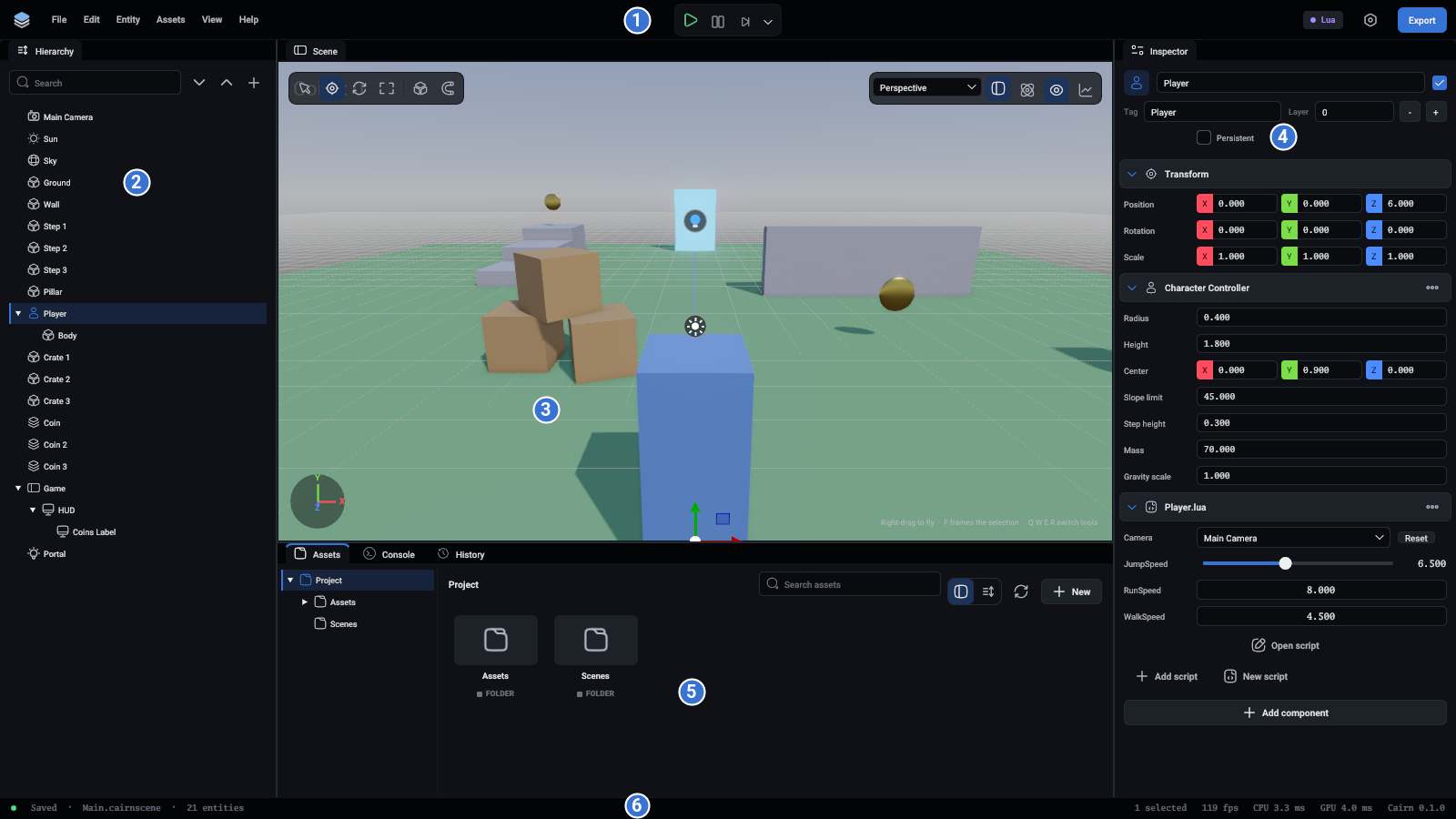
The six areas
- Top bar. The menus on the left, the play controls in the middle, and on the right the project's script language, your preferences and Export. See Top bar and menus.
- Hierarchy. Every entity in the scene, as a tree. Click one to select it. The + button makes a new one, and a right-click on an entity makes one under it. Drag an entity onto another to make it a child. See Hierarchy.
- Viewport. The scene, seen through the editor's own camera. Click something to select it. Lights and other things that draw nothing have an icon to click. The toolbar at its top left holds the tools (Select, Move, Rotate, Scale) and snapping. The one at its top right picks the view and switches on the grid or the collider outlines. See Viewport.
- Inspector. Everything about what is selected: its name, its transform and each of its components. Add component is at the bottom. With nothing selected it shows the scene's render settings, and with a material selected in the Assets panel it shows the material. See Inspector and Components.
- The tabs under the viewport. Assets is the project's files. Console is the log, where
printfrom a script ends up, along with errors. History lists every change you made and lets you step back. See Assets and Console and history. - Status bar. Whether the scene is saved, has unsaved changes or is playing, the scene's file, how many entities it has, and on the right the frame rate.
Moving around the scene
Changing things
Select an entity, then either type numbers in the inspector or drag the gizmo in the viewport. Q, W, E and R pick the four tools, from Select to Scale.
Everything is an undo step. Ctrl+Z undoes, Ctrl+Shift+Z redoes, Ctrl+S saves. On macOS, use Cmd.
Playing
The green button, or F5, starts the game inside the viewport, which gets a green edge. The game now has the keyboard and mouse. F5 again stops it, and the scene goes back to exactly how it was. Nothing you change while playing is kept.
F6 pauses. The step button runs one frame at a time.
Next
- Try it on a real project: the quick start makes one from a template in a minute.
- Or build one from nothing in the tutorial.
- Key concepts explains the ideas behind what you just saw.