
Quick start
This page makes a playable project from a template, looks round the editor and changes one thing. It takes a few minutes. To build a game from nothing and learn how the pieces fit, do the tutorial afterwards.
Open the hub
Start the editor with no arguments:
With no project open the editor shows the project hub. It lists the projects you opened lately, and has two buttons: Open project and New project.
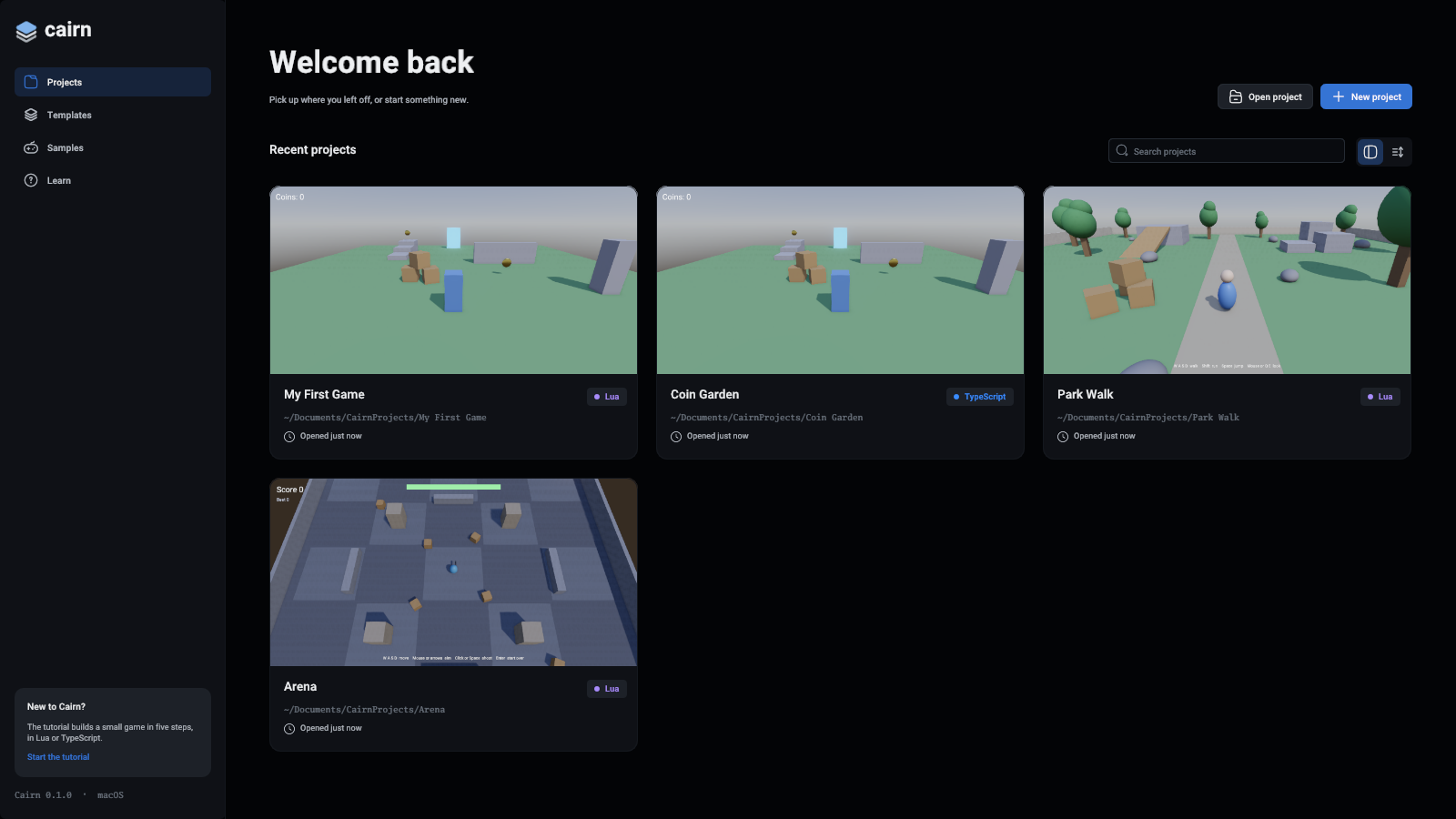
To play a finished game first, open Samples on the left and press Open a copy on one.
Make a project
- Press New project.
- Type a name. The project's folder is the location plus that name.
- Leave Lua picked, and under Start from, pick Third person.
- Press Create project.
The editor makes the folder, copies the template's scripts in, builds its level and opens it.
The templates are:
Play it
Press the green play button above the viewport. The viewport now shows the game through its own camera, and the game has the keyboard and mouse.
Press the red stop button to go back to editing. Stopping puts the scene back exactly as it was when you pressed play.
Change something
- Click a tree in the viewport. It gets a blue box, and the inspector, under the hierarchy, shows its values.
- Press W for the move gizmo and drag an arrow.
- Press Ctrl+Z to undo, and Ctrl+S to save. On macOS, use Cmd.
Change the player's speed
- Select Player in the hierarchy on the left.
- In the inspector, find Scripts. The
Player.luascript lists its fields. - Change WalkSpeed and press play.
The script itself is in the Assets panel under Assets/Scripts. Double-click it to open it in your code editor. Save it while the game is playing and the change takes effect at once.
Next
- Your first game, the step-by-step tutorial
- The editor's panels and controls
- Writing scripts
- Exporting a game