
6. A second level
A game is usually more than one scene. In this part you make a second level and a portal that leads to it, and keep the score across the switch.
Make the scene
A new scene is empty, so start by taking along what every level needs.
- Save the scene with Ctrl+S.
- In the Hierarchy, click Main Camera, then Ctrl-click Sun, Sky, Ground and Player so all five are selected. Press Ctrl+C.
- In the Assets panel, open the
Scenesfolder, press New and choose Scene. The editor makesNew Scene.cairnsceneand opens it. - Press Ctrl+V, then Ctrl+S.
The copies keep their links to each other: the pasted camera follows the pasted player. They do not keep links to things that were not copied.
Make this level look different. Make a sandy material and put it on the ground. Turn the sun: select Sun and set its Rotation to -35, -60, 0 for a lower, later light. Then add something to climb:
Each is a cube with a Box Collider, as in part 1. Move the player to 0, 0, 10, and drag two Coin prefabs in, at 0, 2.6, -4 and 0, 2.6, -10.
Save, then double-click Main.cairnscene in the Assets panel to go back to the first level.
Now give the new scene a proper name: right-click New Scene.cairnscene, choose Rename... and call it Level2. A scene cannot be renamed while it is the one that is open, which is why this step comes last.
The portal
- +, Create Cube, name it
Portal. Set Position to0, 1.5, -12and Scale to2, 3, 0.3. - Add a Box Collider and tick Is trigger.
- Make a material called
Portalwith a blue Base color, and set Emissive to a bright blue. An emissive colour above 1 glows. - Add a Point Light with a blue colour, Intensity
4and Range8, so the portal lights the ground around it. - Add Scripts, press New script, and replace the contents of
Portal.lua:
- Select Portal again and drag
Level2from the Assets panel onto the script's NextLevel box.
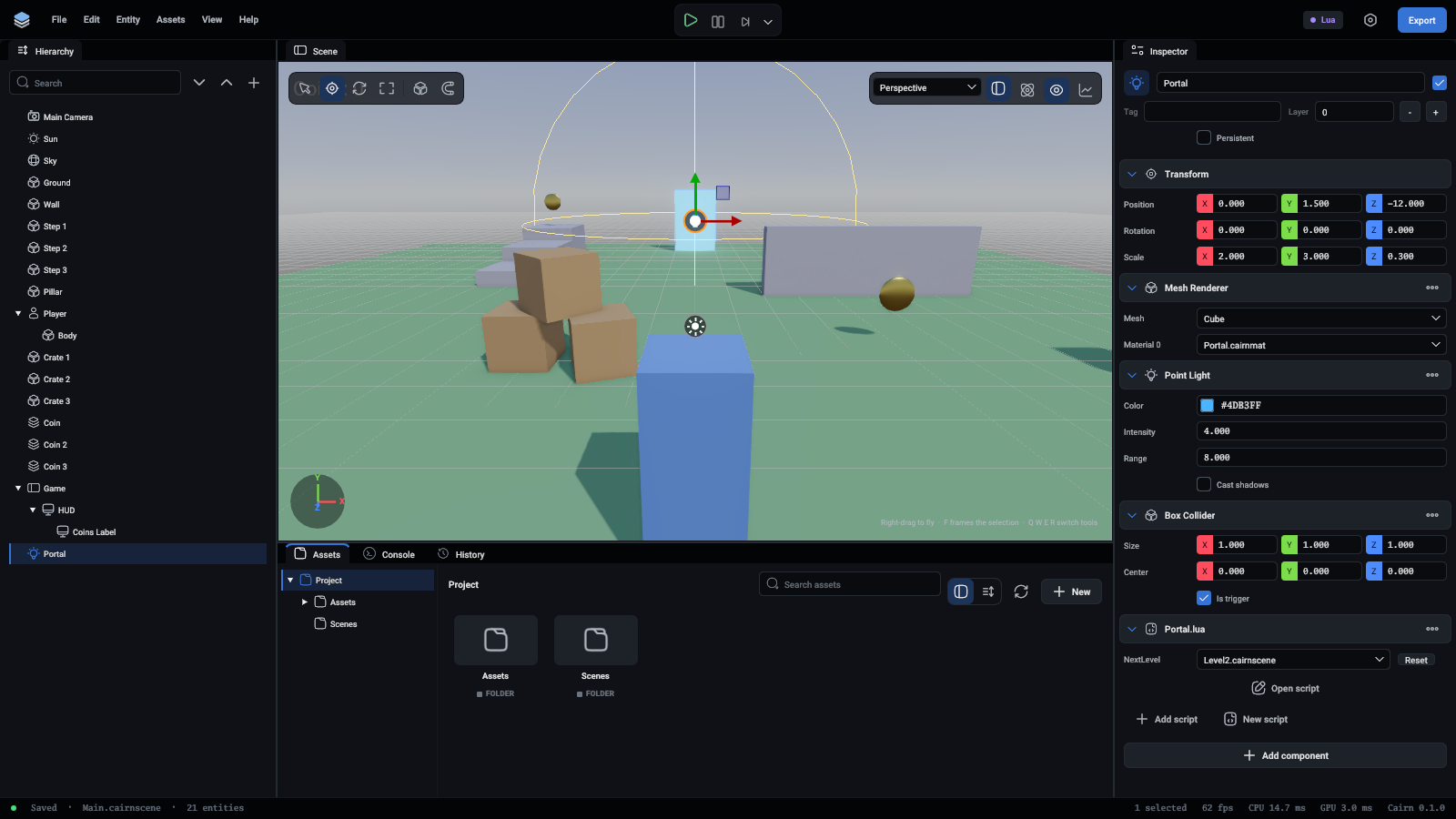
Field.Scene is a field that holds a scene file, the same way Field.Entity holds an entity. Scene.FindByTag("Coin") lists every entity with that tag, and # in front of a list is its length. While coins are left, the portal says so in the Console and does nothing.
Scene.Load switches at the end of the frame: every entity of the current scene is destroyed and the new scene's entities come in.
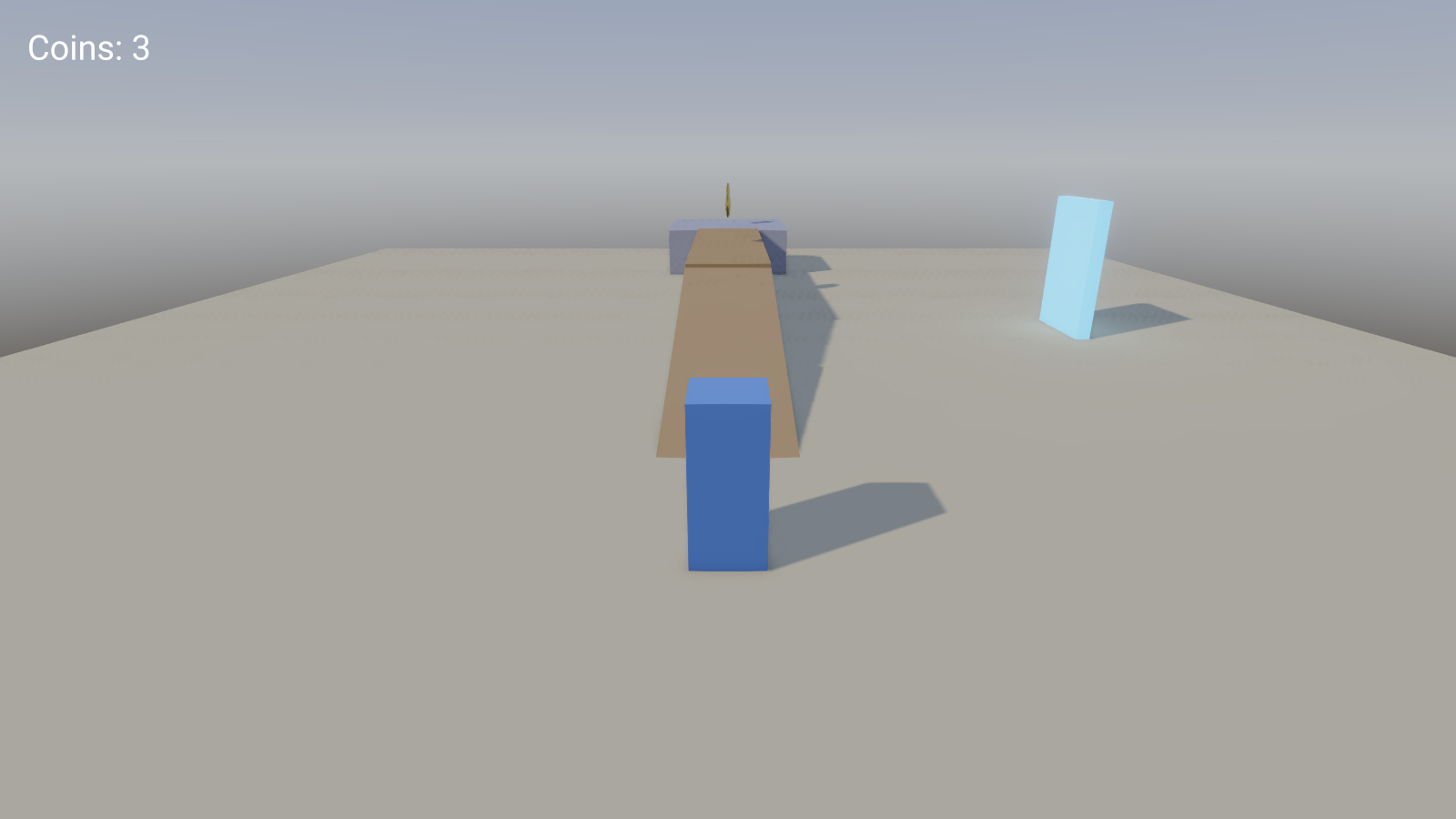
Press Play, collect the three coins and walk into the portal. You arrive in the second level, and the score is gone.
What survives a switch
The Game entity was destroyed with everything else. An entity survives a scene switch when it is marked persistent.
- Stop the game. Select Game and tick Persistent in the inspector.
A persistent entity stays, with everything under it, its scripts still running and their values intact. The HUD is a child of Game, so it stays too.
Play again. The count now carries over, and the second level's coins add to it.
Two rules to remember:
- Only an entity at the top of the hierarchy can be persistent. Its children come along.
Gameexists only in the first level's file. Play the second level on its own from the editor and there is no score, because nothing made one. For a real game, start from a small first scene that holds what must always exist, and load the first level from there.
A way back
Open Level2, add a portal there the same way, and point its NextLevel at Main. Put it at 8, 1.5, 0 with a scale of 0.3, 3, 2.
When the player comes back, the first level starts fresh, coins included. That is what loading a scene means: it is read from its file again. If a level should remember what was collected, keep that in the persistent entity, or in a saved game. See Saved games.
Which scene the game starts in
File > Project Settings... > General has Start scene. It is Main, which is what an exported game opens first.
What you learned
- A project has any number of scenes, and entities can be copied between them.
Scene.Loadreplaces the running scene at the end of the frame.- A persistent entity and its children carry over.
Field.Scenelets the inspector say where a portal leads.
Next: export and next steps.