
2. A player you can move
In this part you make a character, tell the project which keys move it, and write the script that connects the two.
Make the player
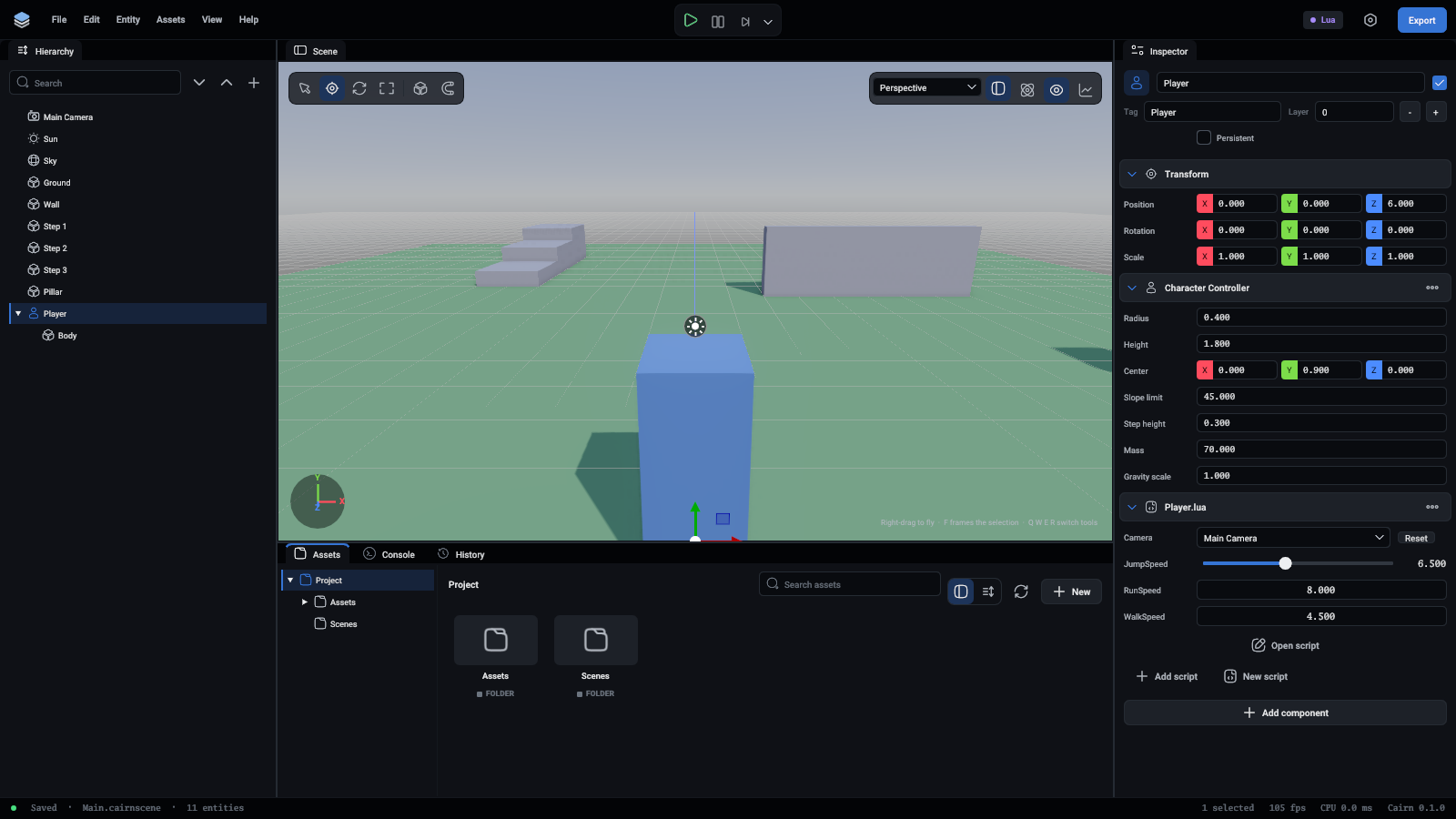
The player is two entities: an empty one that does the moving, and a box under it that you can see.
- In the Hierarchy, press + and choose Create Empty. Name it
Player. - Set its Position to
0, 0, 6. - In the inspector, type
Playerin the Tag box. Scripts will use the tag later to tell the player from everything else. - Press Add Component and choose Character Controller. Set Radius to
0.4and Center to0, 0.9, 0. Leave Height at1.8.
A Character Controller moves an entity the way a game character moves: it walks along the ground, climbs small steps, slides along walls and never falls over. Its shape is an upright capsule. With the centre at half the height, the entity's position is at the character's feet, which makes placing it easy.
Now the part you can see:
- Right-click Player and choose Create Cube. The cube is made as a child of the player. Name it
Body. - Set the body's Position to
0, 0.9, 0and Scale to0.8, 1.8, 0.8. - Make a blue material called
Suitand put it on the body.
A child moves with its parent. The body's position is measured from the player, so it stays on the player wherever the player goes. Do not add a collider to the body: the Character Controller is the player's shape.
Name the controls
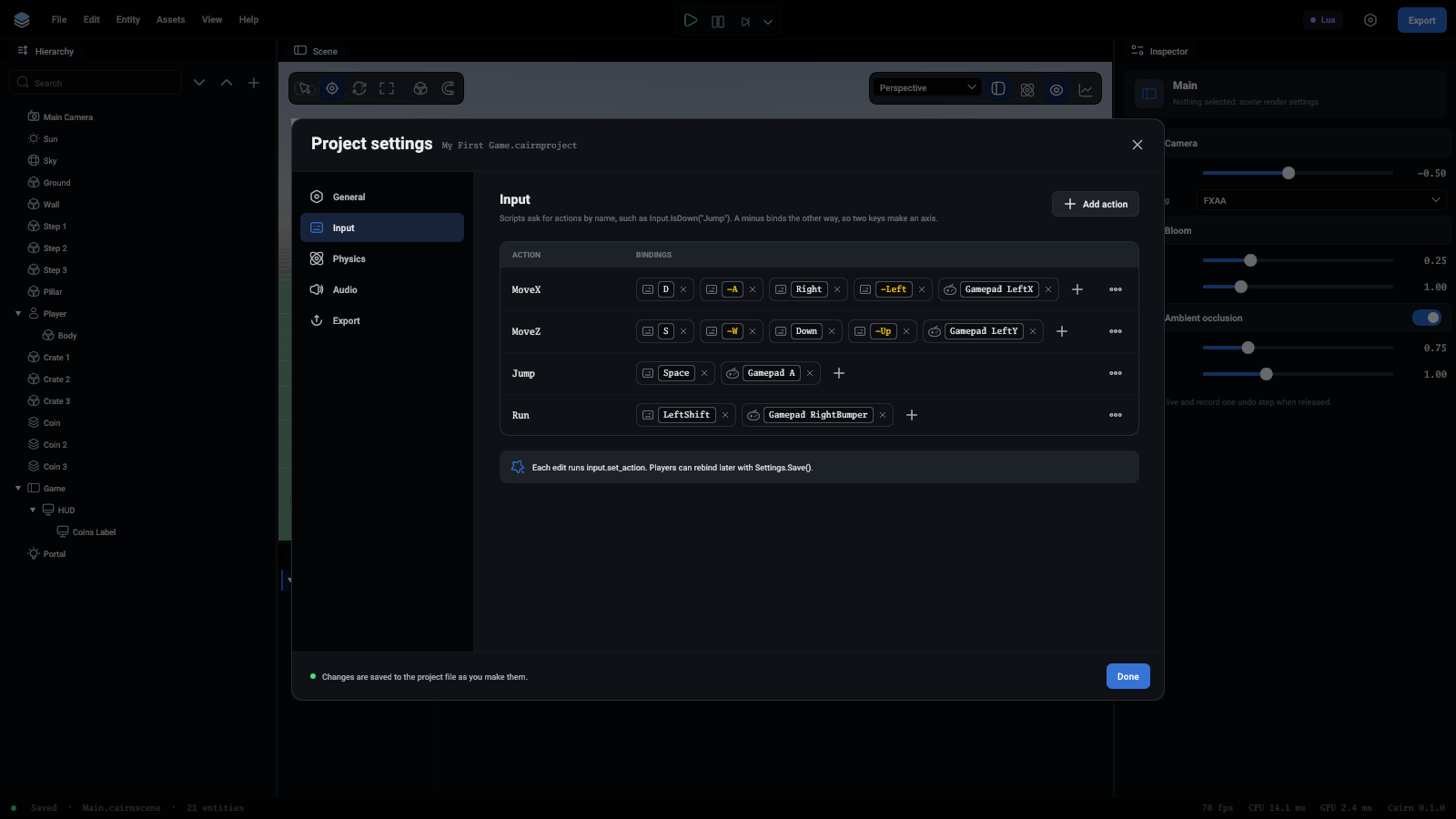
Scripts do not ask about keys. They ask about actions, such as "Jump", and the project says which keys and buttons drive each action. That is what lets a player use a keyboard or a gamepad with the same script.
- Open File > Project Settings... and go to the Input tab.
- Type
MoveXin the box at the bottom and press Add action. - On the new row press +, then Press a key..., then press D.
- Press + again, tick The other way (-1), press Press a key... and press A.
MoveX is now an axis: 1 while D is held, -1 while A is held, and 0 for both or neither.
- Add the rest the same way:
MoveZ has S as the positive key because +Z points towards the camera in this engine, and forward is -Z.
To add a gamepad, press + and type Gamepad in the filter: Gamepad LeftX for MoveX, Gamepad LeftY for MoveZ, Gamepad A for Jump.
Write the script
- Select Player. Press Add Component and choose Scripts.
- Press New script. The editor writes
Assets/Scripts/Player.luaand puts it on the player. - In the Assets panel, open
Assets/Scriptsand double-clickPlayer.lua. It opens in your code editor.
Replace what is there with a first version that only walks:
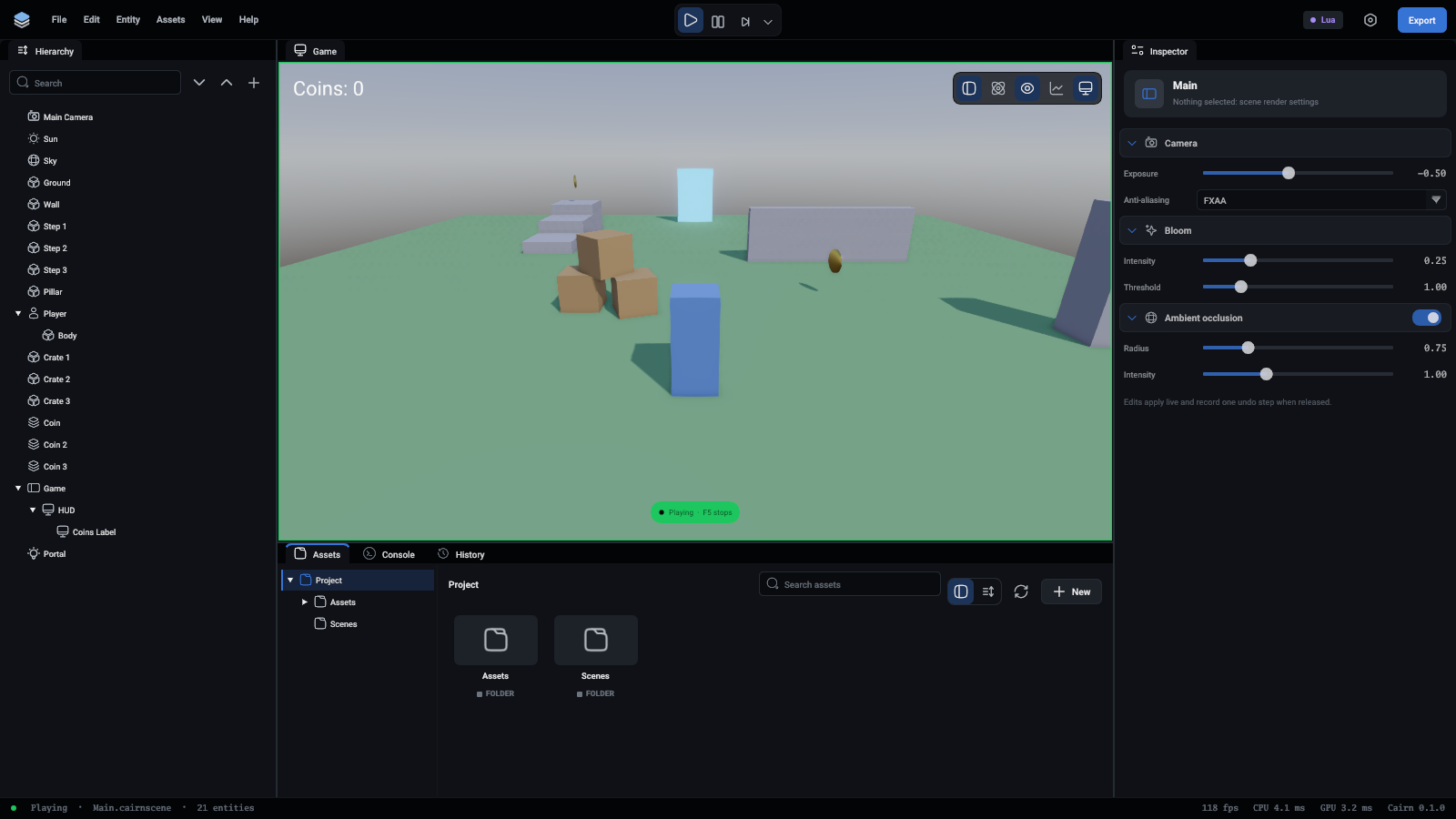
Save the file and press the green Play button above the viewport, or F5. Walk with W A S D. Press F5 again to stop.
What the script says
A script is a Lua file that returns a table, or a TypeScript file that ends with export = DefineScript({ ... }) around the same table. The engine makes a copy of that table for each entity the script is on, and calls functions on it by name.
Player.Fieldslists values the inspector shows. Select the player and you will find WalkSpeed under Scripts. Change it there and this entity uses the new number, without touching the file.OnStartruns once when the game starts.self.Entityis the entity the script is on, andself.Entity.CharacterControlleris that entity's component. The Lua script keeps it inself.Controllerto use every frame. The TypeScript one looks it up each frame and stops when it is missing: after that check, TypeScript knows it is there.OnUpdateruns every frame.Input.GetValuegives each action's value from -1 to 1, the script builds a direction out of the two, andMovetells the controller how fast to walk that way.
Move takes a speed, not a distance. The controller keeps walking at that speed until told otherwise, and gravity is its own business.
Make it better
Three things are wrong with the first version. Walking diagonally is faster than walking straight, because the direction (1, 0, 1) is longer than (1, 0, 0). The player cannot run or jump. And it slides around without turning to face where it goes.
Change OnUpdate:
And add the two new fields:
You do not need to stop the game to try this. Save the file while the game is playing and the new code is in use at once.
Input.IsDownis true for as long as the action is held.Input.WasPressedis true only in the frame it went down, which is what a jump wants: one press, one jump.a and b or cis Lua's way to pick one of two values on one line. TypeScript writes ita ? b : c.Jumpdoes nothing in the air, so there is no double jump to guard against.Field.NumberwithMinandMaxshows as a slider in the inspector.
The player still walks along the world's axes whatever the camera does. The next part fixes that, once there is a camera to ask.
What you learned
- A parent and its children move together.
- Scripts ask about named actions, and the project settings bind them to keys.
- A script is a table of functions the engine calls:
OnStartonce,OnUpdateevery frame. Fieldsare values each entity can set in the inspector.- Scripts reload while the game runs.
Next: a camera that follows.